How to Turn Your Bird into Anime
Parrots, cockatiels, and conures already have main character energy — here's how to give them a proper design
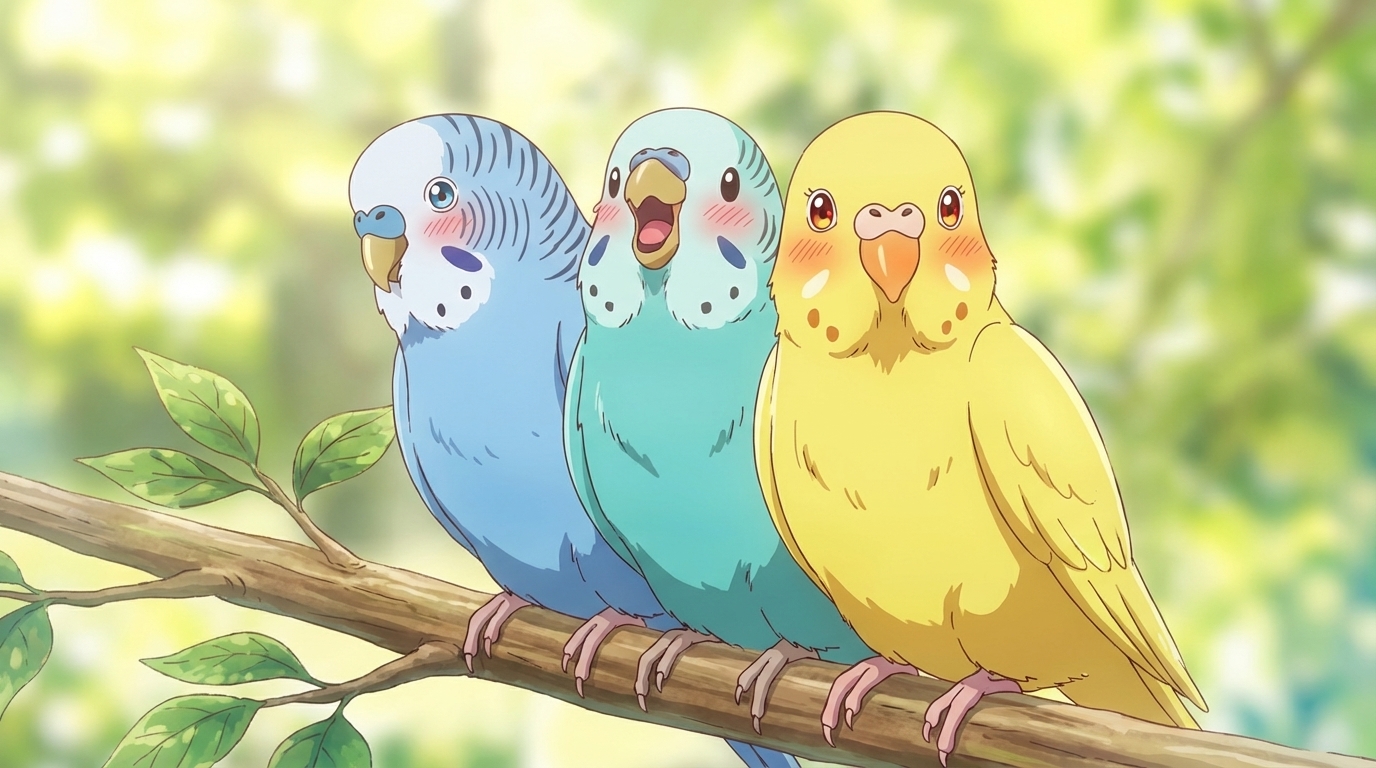
Upload a photo of your bird to AutoWeeb, convert it to anime, build a character sheet from the result, then use that character in images and videos. Feather detail is more sensitive to photo quality than fur — the converter reads color distribution and layering directly from the image, so a clear, well-exposed photo produces a significantly more accurate result. Here's how each step works.
👉 Turn Your Bird into Anime on AutoWeebStep 1: Upload and Convert
Upload a photo to AutoWeeb's photo-to-anime converter. Shoot in soft natural light at a slight angle — a three-quarter view shows feather layering and color distribution better than a flat frontal shot. For large parrots and macaws, a photo with wings slightly spread or the body angled sideways captures more of the color pattern. For smaller birds like cockatiels and budgies, get close enough that the face, crest, and cheek patches are clearly readable. Use the style selector to set the visual register — a sharper, higher-contrast style preserves bright plumage better than a softening Ghibli-adjacent style.
Step 2: Create a Character Sheet
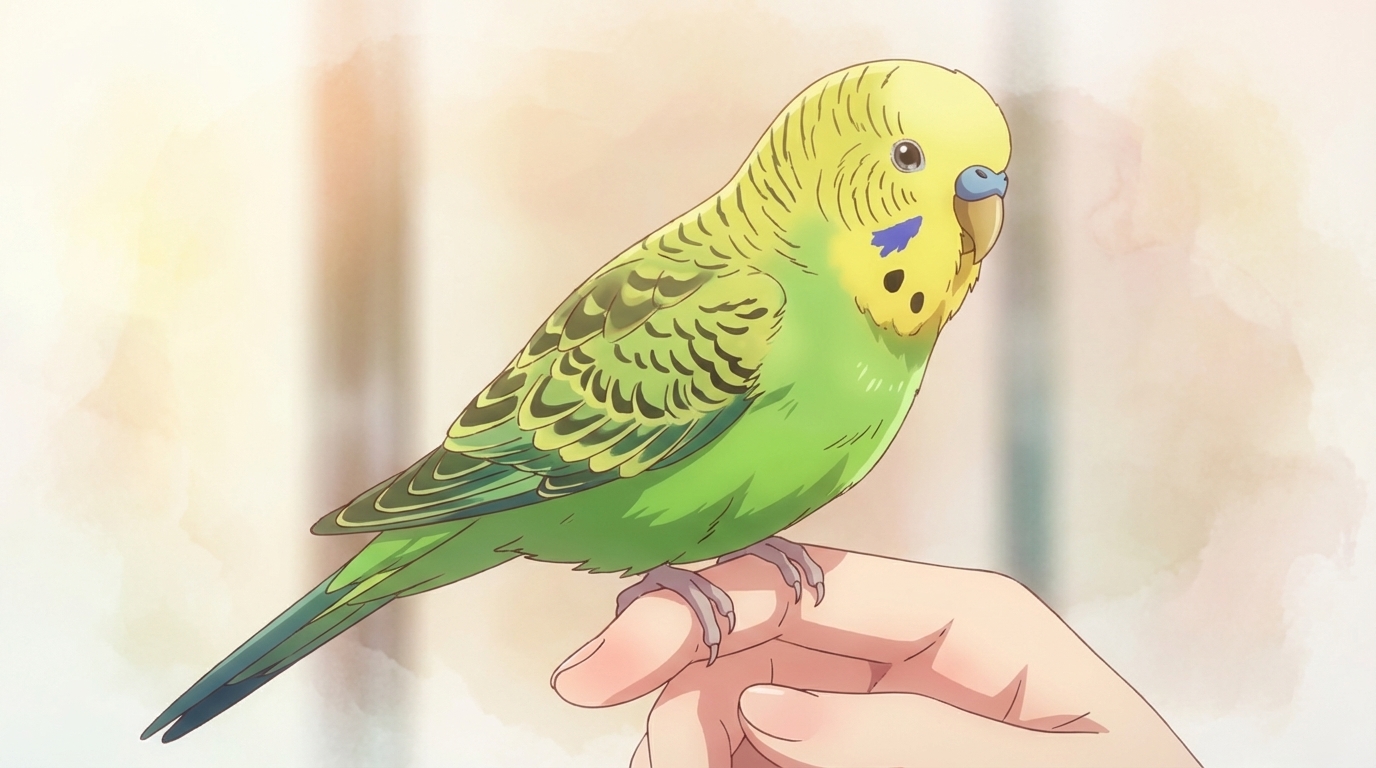
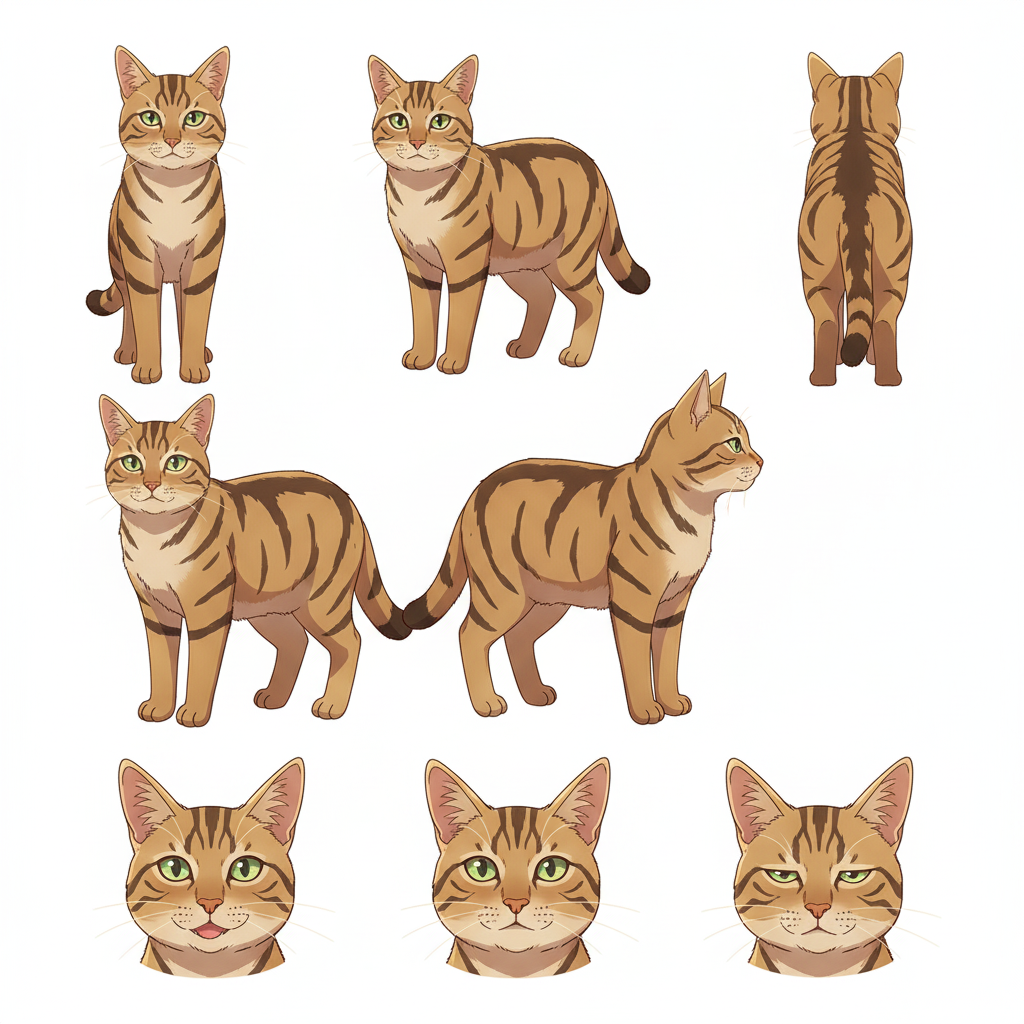
Take the converted image into AutoWeeb's Character Creator to generate a full character sheet — front, side, and back views with a locked color palette. For birds, the details to lock in are feather color by region (body, wings, nape, tail), beak color and shape, and eye color including any iris ring.
In the character description, describe the colors precisely rather than naming the species: primary flight feathers in cobalt blue transitioning to emerald at the tips, yellow nape feathers, dark gray beak, golden-yellow iris ring around a dark pupil. This specificity is what makes the character sheet recognizably your bird and keeps it consistent across every output.
Step 3: Create Images and Videos
Use AutoWeeb's photo packs to place your bird in an anime scene, or use a video template to animate the character. The isekai town pack has market perches, rooftop vantage points, and architectural settings. The Japanese nature pack covers forest branches and outdoor environments. The slice-of-life pack handles indoor settings — a wooden perch stand, a window with morning light, a shoulder perch.
Prompts that work well for birds in scenes:
- wise parrot familiar perched on a rooftop, deep emerald feathers with gold accents, dark attentive eyes, isekai town setting, fantasy anime style
- cheerful cockatiel, sulfur-yellow crest raised, coral cheek patches, indoor perch, Ghibli-style warm rendering, late afternoon light
- dramatic macaw, cobalt and scarlet feathers, wings spread, jungle branch, anime adventure style, theatrical lighting
The general pet-to-anime guide covers the same workflow for any animal. The full photo-to-anime guide covers the conversion in more detail, and the character creation guide covers everything in the Character Creator.
Related Blog Posts
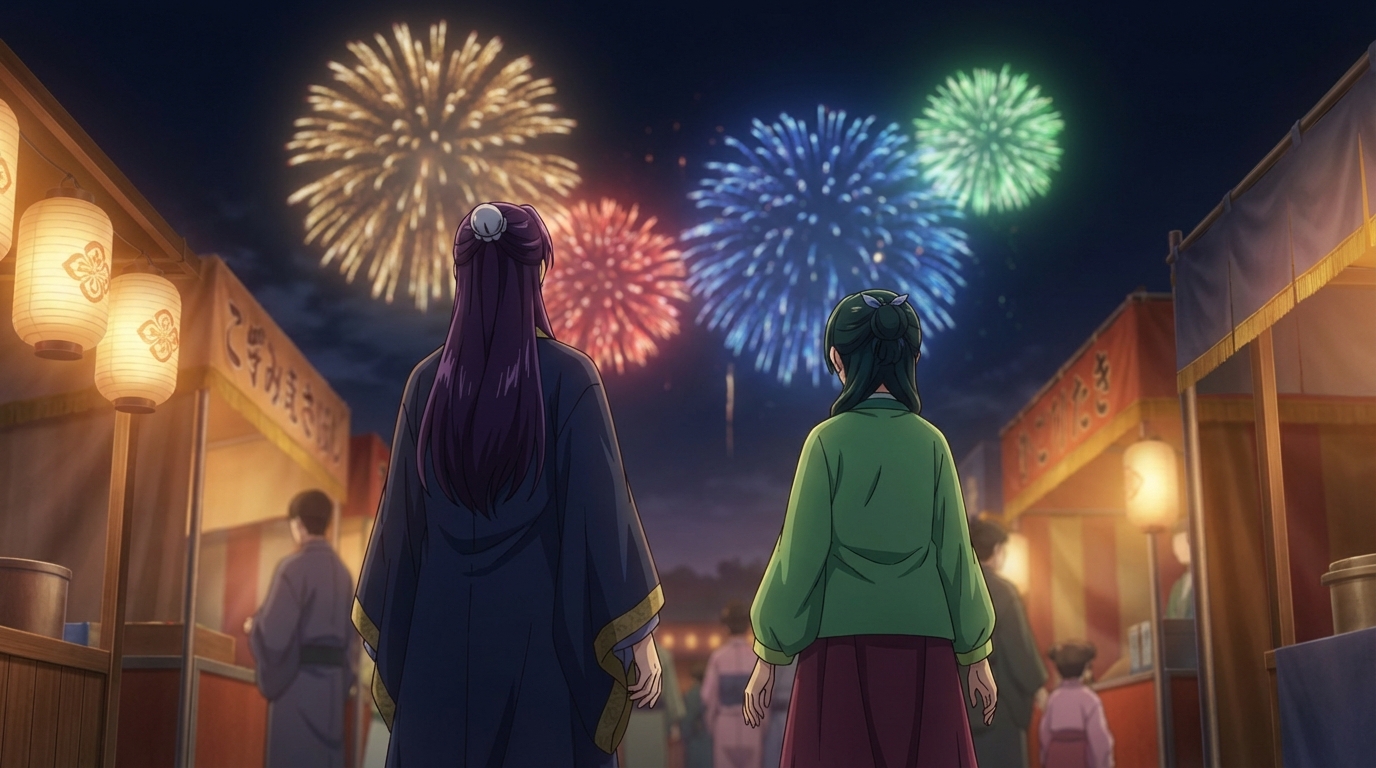
Anime Festival Date Scenes You Can Create
The summer festival is one of anime's best romantic settings. Here's how to build yours
Create anime festival date scenes with AutoWeeb. Generate romantic summer festival and matsuri scenes with your own characters using AI-powered anime art.
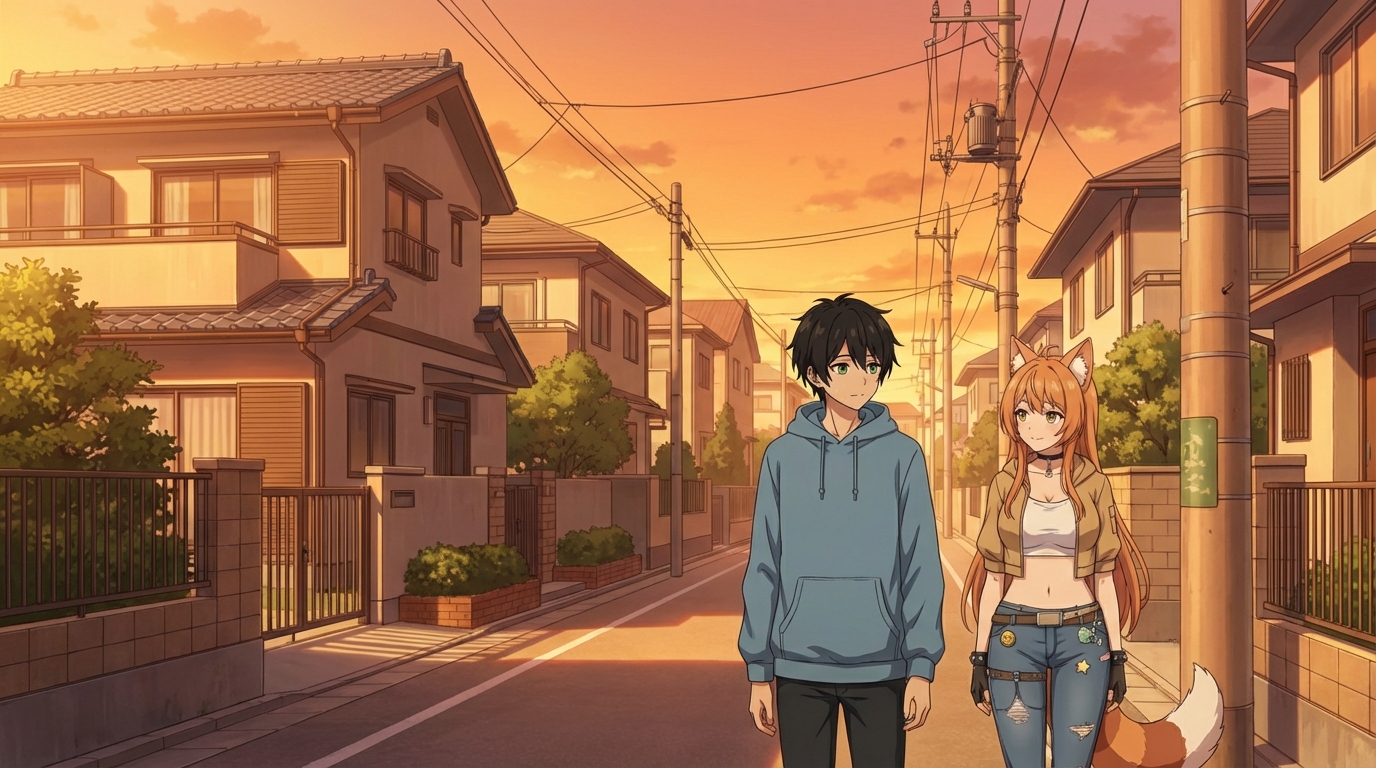
Create Your Own Anime Romance Story
From character design to multi-scene story, here's how to build a romance that's actually yours
Create your own anime romance story with AutoWeeb. Design characters, build scenes, and tell a complete love story using AI-generated anime art.
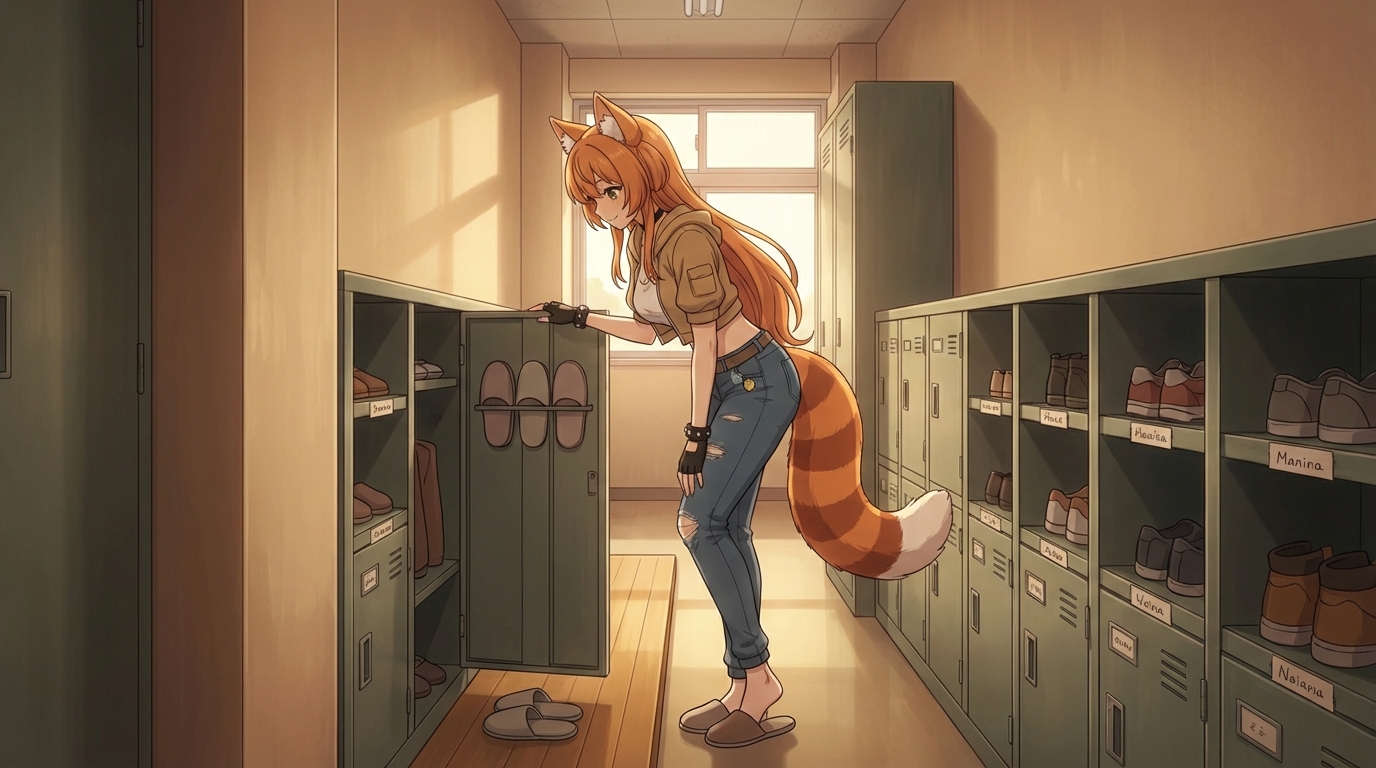
What If You Were in an Anime Love Story?
The tropes, the settings, the moments, and how to actually put yourself into all of them
What if you were in an anime love story? Explore the classic tropes and settings, then use AutoWeeb to generate scenes with yourself as the main character.
Anime Couple Scenes You Can Recreate With AI
Classic moments from anime romance, rebuilt with your characters in the lead roles
Recreate your favorite anime couple scenes with AI. Use AutoWeeb to put your own characters into the iconic moments from anime romance, from rooftop confessions to festival nights.
Explore AutoWeeb
Jump into the tool that fits your creative step.
AI Anime Video Generator
Animate storyboard shots into cinematic clips with Seedance 2 and consistent characters.
Anime Character Creator
Design original characters with consistent sheets across every scene.
AI Anime Image Generator
Generate cinematic anime stills anchored to your character library.
Anime Filters
Upload any photo and apply AI anime filters to turn it into stunning anime art in seconds.
AI Anime Location Generator
Create a location set once, then generate reference images from every angle.
AI Anime Storyboarding
Describe your idea, pick your characters, and let AI draft the script and scenes.
AI Anime Prompt Agent
Turn a rough idea into a cinematic Seedance 2 prompt with the AI Director.