How to Create Anime Sword Fight Videos with AI
From draw stance to finishing blow, generate cinematic anime swordplay with Seedance 2
The sword fight is anime's most technically demanding scene type. Speed lines, blade arcs, cloth physics, dramatic pauses that stretch a single second into ten. When it works, nothing in animation hits harder. And now you can generate it yourself.
AutoWeeb uses Seedance 2 to turn anime character images into video clips. Sword fights are one of the best use cases: the model handles weapon motion, fabric movement, and impact effects with a level of quality that was impossible six months ago. Here's how to get the best results.
👉 Create Your Own Anime Sword Fight on AutoWeebStep 1: Build Your Fighter
Sword fights live and die on character design. Before you generate any video, you need a starting image where the character's weapon, outfit, and stance are all clearly visible. Seedance 2 treats the starting image as frame one of the video, so anything missing from that frame will be improvised by the model. For a sword fight, that means the sword itself needs to be visible and prominent.
Use AutoWeeb's Character Creator to build a character sheet with the weapon included. A good approach: describe the character holding the weapon in a ready stance. Something like "anime samurai, black hakama, white haori, katana held in two-handed grip at shoulder height, determined expression, wind in hair".
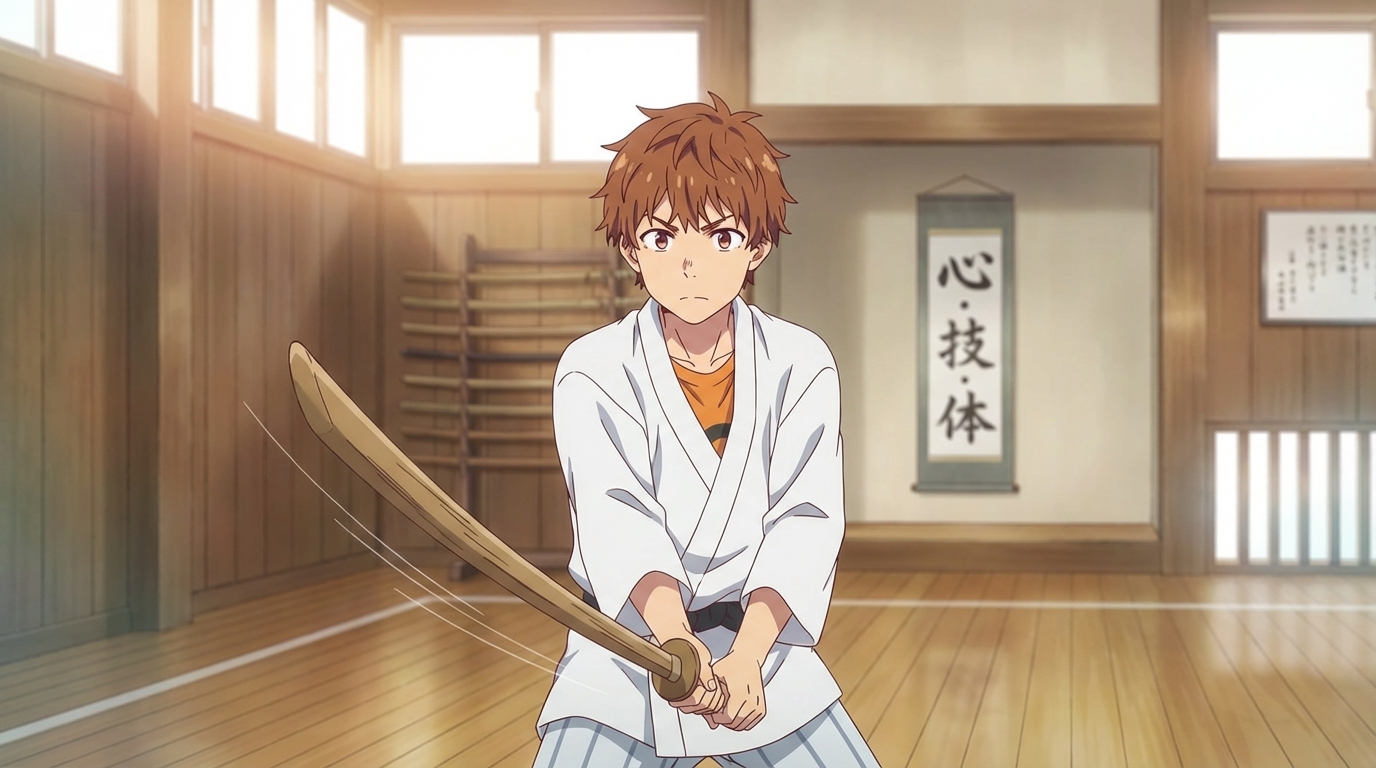
The more specific you are about the weapon design, the better the result. "Katana with a red cord-wrapped hilt" gives the model something concrete to maintain across frames. "Sword" leaves too much to interpretation.
Step 2: Write the Slash
The signature moment in any anime sword fight is the slash itself. This is where Seedance 2 shines, but only if you prompt the motion precisely. Describe exactly what the body does, not just what the sword does.
A good 5-second slash prompt:
"Medium shot, anime swordsman lunges forward and swings katana in a wide horizontal arc from right to left, blade catches the light, cloak trails behind the motion, camera tracks the swing, impact flash at the end of the arc, dark forest background, moonlit"
Notice how the prompt describes the body motion (lunges forward), the blade motion (horizontal arc, right to left), the camera (tracks the swing), and the finishing beat (impact flash). Each of these gives the model a specific instruction for what should happen during those five seconds.
If you describe too many actions for the time limit, the model will compress them into a blurry mess. One decisive slash in five seconds looks cinematic. Three slashes in five seconds looks like a slideshow.
Step 3: The Staredown Before the Strike
Every great anime duel has the moment of stillness before the violence. Two fighters locked in eye contact, wind moving through their hair, hands tightening on hilts. This is often more visually compelling than the fight itself, and it's easier for AI to generate well because the motion is subtle.
For a 5-second staredown:
"Close-up shot of anime swordsman's face, eyes narrowing slowly, beads of sweat on the brow, the wind picks up and pushes his hair across his forehead, camera slowly pushes in, shallow depth of field, blurred opponent visible in the far background, tension, silence"
These quieter clips are essential for building a multi-clip fight sequence. They create the rhythm: stillness, then explosion. Without the pause, the action has no weight.
Step 4: Cut to the Impact
After the slash, cut to a new scene showing the result. This is where explicit camera cut language matters. Don't try to animate the slash and the impact in a single 5-second clip. Instead, generate them as separate clips and let the edit do the work.
An impact prompt:
"Cut to a new close-up scene of a blade striking a stone pillar, sparks flying outward in all directions, the pillar cracks down the middle, dust and debris in the air, camera shakes slightly on impact, dramatic side lighting"
Step 5: Assemble the Duel
A complete sword fight sequence might be 4-6 clips edited together. A rough structure that follows classic anime pacing:
- The approach: wide shot, two fighters walking toward each other (5s)
- The staredown: close-up, tension building (5s)
- The draw: medium shot, hands moving to hilts, sudden burst of motion (5s)
- The clash: close-up, blades meeting, sparks (5s)
- The finishing blow: wide shot, one decisive slash (5s)
- The aftermath: static shot, victor standing, dust settling (5s)
Each clip gets its own starting image and its own prompt. Edit them together in CapCut, DaVinci Resolve, or any video editor. Add a soundtrack and the sequence will feel like it was pulled from an actual anime episode.
Tips for Better Sword Fights
- Keep the weapon visible in every starting image. If the sword isn't in the frame, the model might forget it exists.
- Describe the arc direction. "Swings from upper right to lower left" gives much cleaner motion than just "swings sword."
- Use environmental interaction. Blades cutting through rain, sparks hitting wet stone, slashes splitting falling leaves. These details sell the physics.
- Be patient. Seedance 2 videos take a few minutes to generate. Spend that time refining your next prompt rather than watching the progress bar.
- Run every prompt through AutoWeeb's prompt analysis tool. It catches missing camera direction, timing issues, and character details you forgot to include.
Go Further with Fighting Videos
Our Create Anime Fighting Videos hub brings together all of AutoWeeb's fight-scene guides, Seedance 2 tips, and the full workflow for cinematic anime combat sequences.
For more on building multi-clip action, read our guide to anime action sequences. If you want to start with image-based battles before moving to video, try the AI anime battle generator.
Related Blog Posts
Anime Birthday Party Ideas (Including One They'll Never Forget)
Party activities for anime-loving kids, from themed decorations to turning every guest into an anime character
Planning an anime birthday party? Here are creative activity ideas for kids aged 8-12, including one where every guest gets turned into their own anime character.
Weekend Activity: Turn Your Whole Family Into Anime Characters
A step-by-step family project that takes 20 minutes and produces something everyone wants to share
Turn your whole family into anime characters with AutoWeeb. A quick, fun weekend activity for parents and kids that produces shareable anime art of everyone.
How Kids Are Designing Their Own Anime Characters With AI
The creative process behind a child's first original anime character
Kids are using AI tools to design their own anime characters, starting from photos, iterating on styles, and building visual identities. Here's what that looks like.
Anime for School Projects: 5 Creative Ideas Using AI Art
Concrete ways kids can use anime AI art to make school assignments more engaging
5 ways kids can use AI anime art for school projects: creative writing illustrations, history scenes, book report covers, science fiction sequences, and more.
Explore AutoWeeb
Jump into the tool that fits your creative step.
AI Anime Video Generator
Animate storyboard shots into cinematic clips with Seedance 2 and consistent characters.
Anime Character Creator
Design original characters with consistent sheets across every scene.
AI Anime Image Generator
Generate cinematic anime stills anchored to your character library.
Turn Photo Into Anime
Upload any photo and watch AI turn it into stunning anime art in seconds.
AI Anime Location Generator
Create a location set once, then generate reference images from every angle.
AI Anime Storyboarding
Describe your idea, pick your characters, and let AI draft the script and scenes.
AI Anime Prompt Agent
Turn a rough idea into a cinematic Seedance 2 prompt with the AI Director.