How to Turn Yourself Into an Anime Video with AI: Step-by-Step Guide
Upload a selfie, pick an art style, and generate an anime video that actually looks like you — in under fifteen minutes.
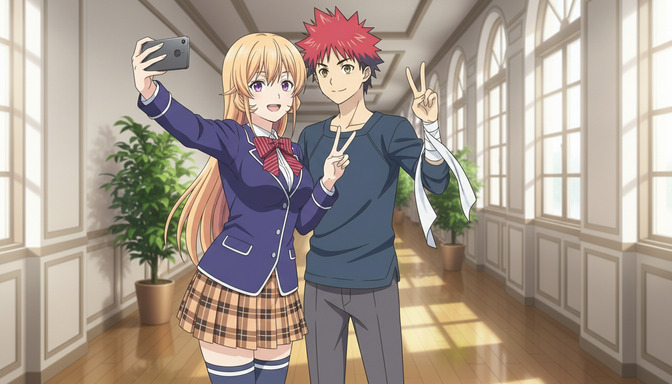
Turning yourself into an anime video with AI is one of those things that sounds like it should take a weekend of technical setup. It doesn't. With AutoWeeb, the path from a selfie on your phone to a short animated clip starring your anime self takes about fifteen minutes — no prompting expertise, no drawing background, no software installs required.
This guide walks through every step: how to upload your photo and convert it into an anime character, how to choose the right art style for the kind of video you want to make, how to generate your first animated clip using the video agent, and how to build that clip into a short story with multiple scenes. There's an FAQ at the end covering the questions beginners ask most.
👉 Start Free on AutoWeeb — Turn Yourself Into an Anime Video TodayStep 1: Upload your selfie and convert it to an anime character.
What makes a good conversion photo.
AutoWeeb's photo-to-anime conversion works from a portrait-style photo: face clearly visible, decent lighting, minimal obstruction. A front-facing selfie with even natural light produces the strongest results. Heavily filtered photos, sunglasses, or low-contrast backgrounds can reduce fidelity, so if you have a few options, choose the clearest one.
You don't need a professional photo. Most front-facing smartphone selfies work well. The system preserves your facial structure, hair shape, and key features while applying the full visual language of whichever anime art style you select in the next step.
What happens after you upload.
Once you upload the photo, AutoWeeb converts it into an anime character and saves that character to your library. From that point on, every scene and video you generate can feature them. The conversion is the foundation: it's what ensures your character looks like you across multiple generations rather than drifting into something generic. That consistency is the core advantage of starting from a photo instead of building a character from text alone.
If the first conversion isn't quite right, you can adjust the fidelity slider toward higher accuracy (preserves more of your original features) or toward higher stylization (leans harder into the anime aesthetic). Most beginners find the default setting produces a result they're happy with on the first try.
Step 2: Choose the art style that fits the video you want to make.
Art style selection is where you set the visual identity of your video. AutoWeeb offers more than a dozen named anime styles, each with distinct visual characteristics, and the choice matters for more than aesthetics: certain styles suit certain types of scenes, and picking the right one before you start generating will save you from having to restart later.
Matching style to scene type.
If you're making a high-intensity action or fight video, Demon Slayer's sharp linework and high-contrast color palette is built for it. The style handles fast motion, dramatic lighting, and impact frames naturally. If you're making something quieter, a slice-of-life scene, a slow walk through a forest, or a conversation at a cafe, Ghibli's soft naturalism and warm lighting reads as emotional rather than clinical. Cyberpunk suits futuristic or urban night scenes: neon edges, rain-slicked streets, electric color grading.
For social media content, Spy x Family's clean lines and expressive character rendering tend to work well across formats because the style is legible at small sizes. For something with school or coming-of-age energy, My Hero Academia's bold palette and dynamic posing translates that genre feeling immediately.
You can switch styles later, but your core character persists.
If you're not sure which style to start with, pick one and generate. Your saved character can be re-rendered in a different style at any point without re-uploading your photo. The character library keeps your reference; the style is a layer applied on top of it. This makes experimentation low-cost: generate a clip in Demon Slayer, generate the same scene in Ghibli, compare, and decide. For a full overview of the available styles and how they differ visually, the AutoWeeb styles page shows sample outputs for each one.
Step 3: Generate your anime video using the video agent.
Describe your scene in plain English — the agent handles the rest.
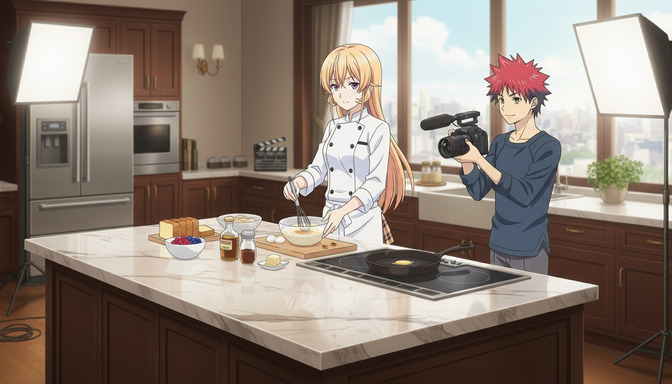
AutoWeeb's video agent is what makes this process accessible to beginners. Instead of writing a technically structured prompt yourself, you describe the scene you want in plain language and the agent converts it into a properly formatted Seedance 2 prompt with camera direction, motion language, style anchoring, and pacing built in.
Descriptions like these give the agent enough to work with:
- My character walks alone down a quiet Tokyo side street at night, hands in pockets, warm lamplight reflecting off the wet pavement
- My character stands on a rooftop at sunset, wind in their hair, looking out over the city like they're about to make a decision
- My character trains alone in a dojo, slow motion punches, focused expression, dust motes floating through the light
The agent translates each of these into a full prompt. You review it, make any adjustments, and generate. For most beginners, the agent's version is better than what they would have written themselves — not because of any special knowledge, but because it includes the specific motion and camera language that anime video models respond to.
What to generate first.
Atmospheric scenes produce the most consistently strong results for first-time sessions. A character walking through a scene, reacting to something offscreen, or standing in a charged moment before action — these have simpler motion requirements than fight sequences and produce cleaner outputs. Once you're familiar with how the tool responds to your descriptions, you can build toward more complex motion in later sessions.
Your first clip will be short, typically three to five seconds. That's enough to evaluate the character rendering, verify the style looks right, and confirm the motion feels like the scene you described. If anything is off, adjust the description and regenerate. The iteration cycle is fast.
Step 4: Build your single clip into a story with multiple scenes.
A story is just a sequence of clips with a through-line.
One video clip is a moment. Three or four clips, arranged with intention, become a scene with narrative shape. You don't need a full screenplay to do this. A simple three-beat structure is enough to start:
- An establishing shot that introduces the setting and mood
- A character-focused shot that shows their emotional state or action
- A reaction or consequence shot that gives the scene resolution or tension
AutoWeeb's scene builder lets you sequence clips with your character against pre-built backgrounds: city streets, festival grounds, school hallways, forests, rooftops. The photo packs give you curated scene environments for placing your character without needing to generate the background from scratch. Combining a photo pack background with your saved character and a video agent prompt is the fastest way to get a complete, polished-looking scene.
Using AutoWeeb's story creation tools to shape the narrative.
If you want to develop your video into something longer, AutoWeeb's story creation tools help you plan it. You can define your character's arc, choose a genre, and build a scene-by-scene outline before generating any video. The AI fills in the narrative details: setting descriptions, emotional beats, and scene transitions that give the story structure without requiring you to script it yourself.
A short anime story might look like: your character arrives in a new city, encounters a rival, trains through the night, faces a test, and succeeds or fails. Five scenes. Each scene becomes a short clip or a two-clip sequence. Assembled together, that's a complete short-form anime episode featuring you as the protagonist. The guide to the best AI tool for anime storytelling covers the narrative frameworks that translate most directly into video planning.
Frequently asked questions about turning yourself into an anime video with AI.
How do I turn myself into an anime video with AI?
Upload a clear, front-facing selfie to AutoWeeb. The tool converts your photo into an anime character that preserves your facial features and hair while applying the art style you choose. Once your character is saved, describe a scene in plain English to AutoWeeb's video agent. The agent writes a properly structured video prompt and generates a short animated clip featuring your character. The full workflow, from photo upload to first clip, takes about fifteen minutes.
What kind of selfie should I upload for the best anime conversion?
A front-facing photo with clear lighting and your face unobstructed gives the strongest results. Natural daylight or evenly lit indoor photos work well. Heavily filtered photos, strong shadows across the face, or images with sunglasses or hats can reduce accuracy. Most smartphone selfies taken in decent light produce a conversion you'll be happy with on the first try.
Which anime art style should I choose for my video?
It depends on the type of video you want to make. Demon Slayer is strong for action sequences and dramatic confrontations. Ghibli works best for emotional, atmospheric, and nature-focused scenes. Cyberpunk suits night urban settings and futuristic visuals. Spy x Family is versatile and reads well across social media formats. My Hero Academia suits high-energy character moments and training scenes. If you're unsure, start with the style from a show you already love — AutoWeeb's conversion will apply that visual language to your character immediately.
Do I need any experience with AI tools or prompting to make an anime video of myself?
No prior experience is needed. AutoWeeb's video agent handles the prompt writing. You describe your scene in plain English and the agent translates it into a structured prompt with camera direction, motion language, and style anchoring. The only thing you need to provide is a photo and a rough idea of the scene you want to create. Most beginners get a result they're satisfied with on their first or second attempt.
How do I make sure my character looks the same across multiple video clips?
AutoWeeb saves your converted character to your library after the first generation. Every subsequent video you generate references that saved character, anchoring their appearance across clips. You don't need to re-upload your photo or re-describe your character for each new scene. The character's face, hair, and proportions stay consistent because they're locked to your saved reference, not regenerated from a text description each time.
What kind of scenes work best for turning yourself into an anime video?
Atmospheric and emotionally grounded scenes produce the most consistent results for beginners: your character walking through a city at night, standing at the edge of a rooftop, training alone in a quiet dojo, or sitting by a window watching rain. These scenes have clear visual anchors and simple motion requirements. Fight sequences and high-intensity action are possible, but they're more complex and tend to need more iteration. Starting with quieter scenes and building toward action as you get comfortable with the tool is a more efficient path to strong early results.
Can I turn my anime video clips into a full story?
Yes. AutoWeeb's story creation tools let you plan a multi-scene narrative around your character, choose a genre, define emotional beats, and sequence your clips into a complete arc. A short story of five to seven scenes is achievable in a single session once you have your character created and your first clip generated. The story tools handle the narrative structure; you focus on which scenes to build and how your character moves through them.
Is there a free way to try turning myself into an anime video with AI?
AutoWeeb offers a free tier that includes photo-to-anime conversion, the character creator, and a limited number of video generations per month. That's enough to convert your selfie, pick an art style, and generate two or three test clips — enough to evaluate the quality and decide whether the tool fits what you're trying to make before committing to a paid plan.
For more on how AutoWeeb's video tools compare to general-purpose AI video generators, the guide to the best AI anime video generator for beginners in 2026 breaks down exactly what makes purpose-built anime video tools different from generic ones. If you want to go deeper into building the narrative before you start generating, the best AI anime generators for beginners guide covers the full workflow from character creation to scene building.
Related Blog Posts
Best AI Anime Generator for Gifts: Birthdays, Holidays, and Personalized Presents
The most personal gift you can give an anime fan is one that turns them into the main character.
Find the best AI anime generator for gifts in 2026. Personalized anime art for birthdays, Christmas, and holidays. Turn any photo into a custom anime portrait they'll actually keep.
Best AI Anime Generator: No Drawing Skills Needed
Characters, scenes, and videos — created entirely through prompts, photos, and tools built for people who can't draw a straight line.
The best AI anime generator for people with no drawing skills. Create anime characters, scenes, and videos in 2026 with AutoWeeb — no art background required.
AutoWeeb vs DomoAI: Which is Best for Anime in 2026?
Anime quality, beginner usability, storytelling, self-insert, and pricing compared
AutoWeeb vs DomoAI compared for anime creators in 2026. Anime output quality, photo-to-anime, video templates, storyboarding, pricing, and REST API access explained.
How to Make an Anime Version of Yourself for Social Media
Your TikTok, Instagram, and Discord profiles deserve more than a stock avatar — here's how to make one that actually looks like you.
Learn how to make an anime version of yourself for TikTok, Instagram, and Discord. Step-by-step guide for a custom anime pfp or avatar that looks like you in 2026.
Explore AutoWeeb
Jump into the tool that fits your creative step.
AI Anime Video Generator
Animate storyboard shots into cinematic clips with Seedance 2 and consistent characters.
Anime Character Creator
Design original characters with consistent sheets across every scene.
AI Anime Image Generator
Generate cinematic anime stills anchored to your character library.
Turn Photo Into Anime
Upload any photo and watch AI turn it into stunning anime art in seconds.
AI Anime Location Generator
Create a location set once, then generate reference images from every angle.
AI Anime Storyboarding
Describe your idea, pick your characters, and let AI draft the script and scenes.
AI Anime Prompt Agent
Turn a rough idea into a cinematic Seedance 2 prompt with the AI Director.