Why AutoWeeb is Easier Than ComfyUI for Anime Character Creation
Same output quality, without the node graph, model downloads, or Python environment
ComfyUI is the tool that serious AI artists reach for when they need maximum control. If you want to build a custom pipeline that chains five different models together with hand-tuned sampler settings, ComfyUI is what you use. But for anime character creation specifically, most of that power is aimed at the wrong target. You don't need to build a pipeline. You need a character.
This is a direct comparison: what ComfyUI requires to achieve the same results that AutoWeeb produces out of the box, and where AutoWeeb goes further than ComfyUI's typical workflows.
👉 Try AutoWeeb Free, No Setup RequiredGetting started in ComfyUI requires hours of setup before a single image is generated; AutoWeeb starts working in under two minutes.
Here is what getting started with ComfyUI for anime character creation actually looks like:
- Install Python (and manage the version conflict with other software on your machine)
- Clone the ComfyUI repository from GitHub
- Install dependencies via pip
- Download a base Stable Diffusion model (2-7GB depending on the version)
- Find and download an anime-specific checkpoint or LoRA from CivitAI
- Place the model files in the correct directory
- Launch the local server and open the browser interface
- Import or build a node workflow for character generation
- Configure the sampler, scheduler, CFG, and steps
- Write your first prompt
That is a realistic description of the setup process for a first-time user. Experienced users can move through it faster, but for someone new to local AI tools, this is a half-day investment before any character creation begins.
AutoWeeb's starting process is: open a browser, create an account, upload a photo or describe a character. The first image is generated in under two minutes from opening the page.
Character consistency is the hardest problem in anime character creation, and ComfyUI requires significant technical knowledge to solve it correctly.
Generating one anime portrait is the easy part. Generating that same character in five different scenes with a consistent face, outfit, and visual identity is the actual challenge. For a character to function as a character rather than a one-off image, this problem has to be solved.
In ComfyUI, the standard approach is the IP-Adapter workflow. This requires finding the IP-Adapter custom node, installing it through ComfyUI Manager, downloading the appropriate IP-Adapter weights, wiring the node correctly in the graph, and tuning the adapter weight parameter to balance identity preservation against creative flexibility. Each of these steps has a learning curve and potential failure points.
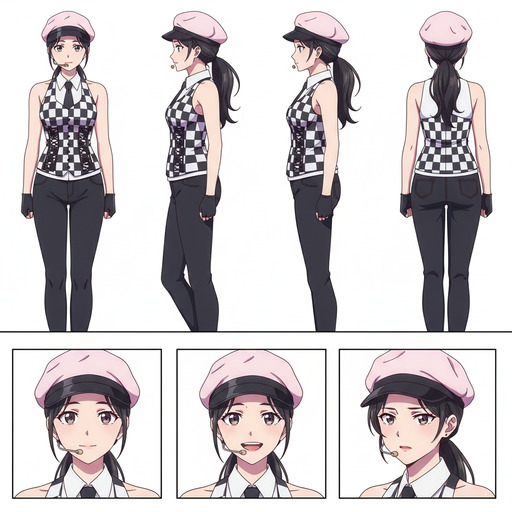
AutoWeeb solves this with the Character Sheet system. Upload or generate a reference image, complete the character details (outfit, personality, archetype), and save. Every subsequent image you generate uses the Character Sheet as its visual anchor automatically. No nodes, no weights, no configuration. The consistency just works.
Applying a specific anime art style in ComfyUI means finding, downloading, and configuring the right LoRA; AutoWeeb's style library does this in one click.
One of ComfyUI's genuine strengths is the breadth of anime models and LoRAs available in the community. There are style-specific LoRAs for dozens of anime series, fine-tuned checkpoints for different aesthetic directions, and ongoing community contributions that keep the options expanding.
The problem is the process of using them. To apply a specific anime style in ComfyUI, you need to find the right LoRA on CivitAI (where quality varies dramatically), download it, place it in the correct directory, add it to your node graph with appropriate trigger words, and tune the strength parameter. If the first LoRA you try doesn't produce the result you wanted, you start over with a different one.
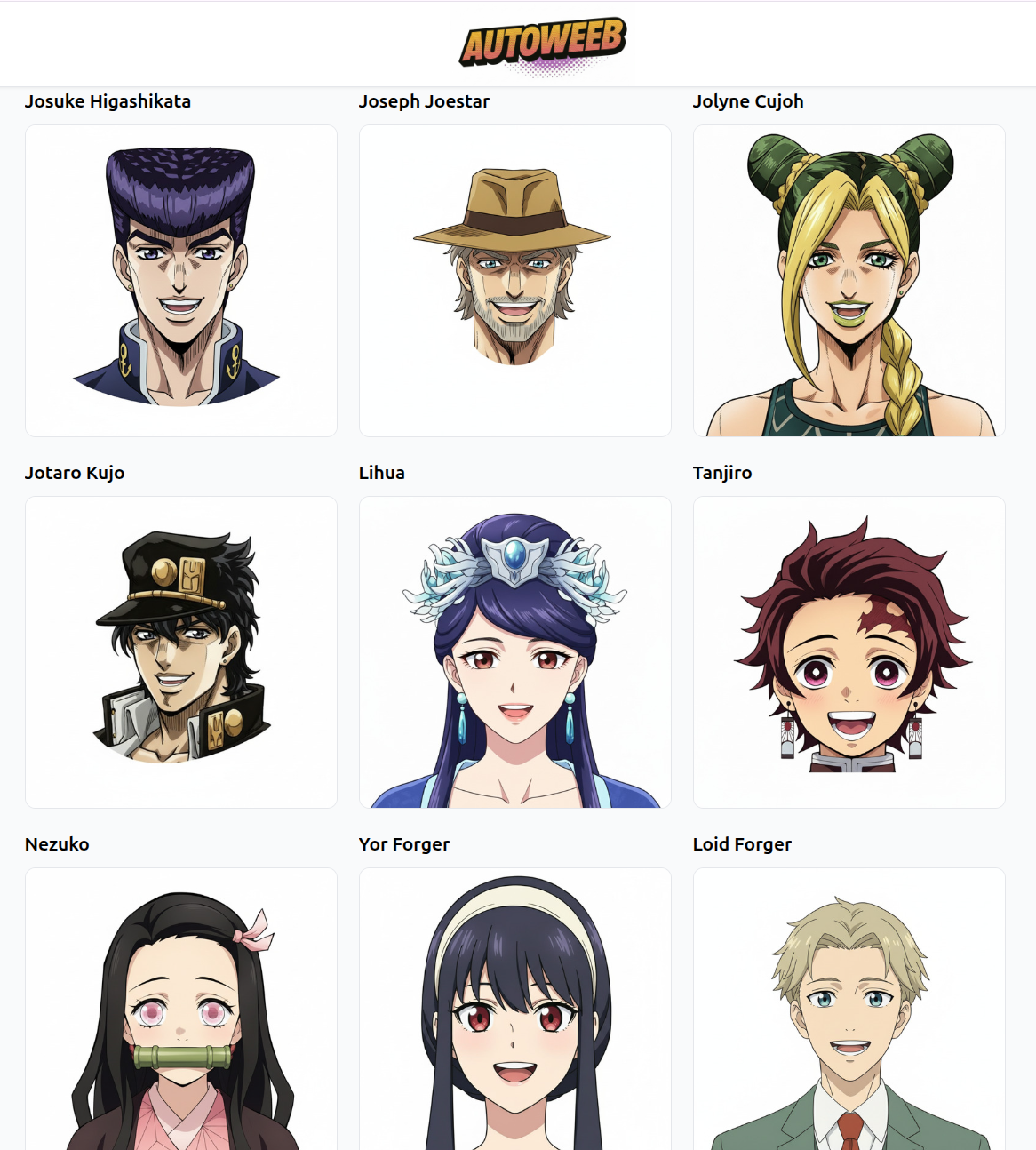
AutoWeeb's style library contains a curated set of anime art styles, including Ghibli, Demon Slayer, Detective Conan, cyberpunk, and others. Selecting a style applies it correctly because the underlying models have been verified to produce quality results in that style. There's no LoRA hunting, no strength tuning, no failed experiments before you find the setting that works.
Photo-to-anime conversion is a standard AutoWeeb feature that requires a separate ComfyUI workflow to replicate.
Converting a real photo into an anime portrait that keeps the subject's face recognizable is one of the most common anime character creation tasks. In ComfyUI, this requires an img2img workflow with either a style transfer or face preservation setup, usually involving InstantID or another face-conditioning node.
These setups work, but they require finding the appropriate custom nodes, downloading additional model weights, configuring face detection preprocessing, and tuning the conditioning strength to balance style with identity. It's a full afternoon of work to build a reliable photo-to-anime workflow from scratch in ComfyUI.
In AutoWeeb, photo-to-anime conversion is a primary feature. Upload a photo, select a style, generate. The conversion preserves facial features while applying the chosen anime aesthetic. The workflow is complete in under a minute and produces results that are directly usable in the Character Sheet system.
AutoWeeb includes video generation through Seedance 2, which requires a completely separate tool and workflow to replicate in ComfyUI.
Animating an anime character into a video clip is one of the most compelling outputs for character creators. In ComfyUI, this is a separate problem from image generation entirely. You need either AnimateDiff (which requires its own model download and node setup) or an external video generation tool. Neither integrates cleanly with the character creation workflow you already built.
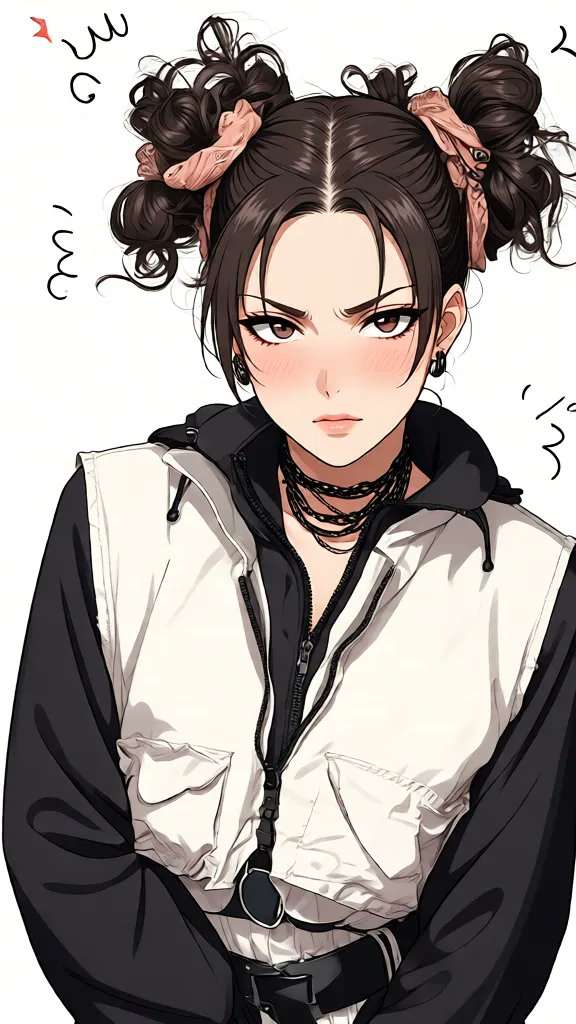
AutoWeeb integrates video generation directly into the character workflow using Seedance 2. Once you have a character image you're satisfied with, you can animate it from the same interface: the starting image becomes frame one, and a motion prompt describes the next five seconds. Fight scenes, ambient environmental motion, dialogue moments. The same character who appeared in your photo conversion is now moving on screen, and you didn't leave the application to make it happen.
For more on what you can build with this, see the guides to creating anime fight scenes and writing Seedance 2 prompts.
ComfyUI remains the better choice for users who need technical control that no dedicated tool currently offers.
This is an honest comparison, which means acknowledging where ComfyUI's advantages are real. If you need to run a custom fine-tuned model that no commercial platform has licensed, ComfyUI is your only option. If you want to chain together six different model architectures in a single pipeline, ComfyUI is built for that. If you want complete local control over your generation without any data leaving your machine, ComfyUI running locally is the answer.
These are legitimate use cases. But they're not what most anime character creators actually need. Most people want to design a character, keep that character consistent across scenes, apply specific anime styles, and optionally animate the result into video. AutoWeeb covers that workflow end-to-end, without requiring any of the technical investment that ComfyUI demands.
👉 Create Your Anime Character on AutoWeebFrequently asked questions about AutoWeeb versus ComfyUI for anime character creation.
Does AutoWeeb produce the same image quality as ComfyUI for anime art?
For the anime art styles that AutoWeeb supports, yes. AutoWeeb uses curated models fine-tuned for specific anime aesthetics, and the outputs are comparable to well-configured ComfyUI workflows using equivalent models. The quality gap between a correctly set up ComfyUI workflow and AutoWeeb is small for most anime character creation use cases. The practical difference is in the hours of work required to get ComfyUI to that point.
Can AutoWeeb do everything ComfyUI can do?
No. ComfyUI's flexibility is genuinely unmatched for custom workflows, experimental model combinations, and local-only generation. AutoWeeb is designed for a specific use case: creating, developing, and deploying anime characters across images and videos. Within that use case, it matches or exceeds ComfyUI's output. Outside that use case, ComfyUI's broader flexibility wins.
Is AutoWeeb more expensive than ComfyUI?
ComfyUI is free and open-source, though running it requires hardware capable of running large AI models locally. AutoWeeb is a web-based service with a credit system, meaning you pay for generations rather than for hardware. For users without a capable GPU, AutoWeeb is likely cheaper in practice because it eliminates the hardware cost. For users with strong local hardware who don't mind the setup work, ComfyUI's zero-per-generation cost is a genuine advantage.
How does AutoWeeb's character consistency compare to ComfyUI's IP-Adapter workflow?
AutoWeeb's Character Sheet system achieves results comparable to a well-configured IP-Adapter workflow in ComfyUI, with a higher baseline consistency for outfit and personality details because those are stored explicitly as text alongside the reference image. The main technical difference is that ComfyUI's IP-Adapter gives you direct control over the strength parameter, while AutoWeeb manages this automatically. For most users, the automatic management produces good results.
What if I've already created characters in ComfyUI? Can I bring them into AutoWeeb?
Yes. Any anime character image you've generated in ComfyUI can be uploaded to AutoWeeb as a reference image. From there, you can build a Character Sheet from it and use AutoWeeb's scene generation, style library, and video tools with your existing character. The workflow is compatible: ComfyUI produces the image, AutoWeeb handles deployment and consistency across scenes.
For more context on the available options, read our overview of ComfyUI alternatives for anime character creation. For the complete AutoWeeb workflow from photo to video, the anime character creation workflows guide covers every step.
Related Blog Posts
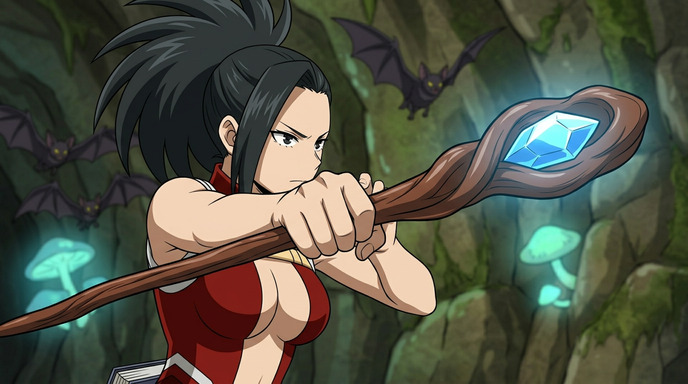
How to Create Anime Magic and Fantasy Videos with AI
Spellcasting, energy beams, and elemental effects that actually look like anime
Create anime magic and fantasy videos with Seedance 2 on AutoWeeb. Prompting tips for spellcasting, energy attacks, elemental effects, and cinematic fantasy sequences.
How to Write Prompts for Seedance 2 Anime Videos
The difference between a good clip and a great one is almost always the prompt
Learn how to write effective prompts for Seedance 2 anime video generation. Tips on camera cuts, time limits, starting images, and using AutoWeeb's prompt analysis tool.
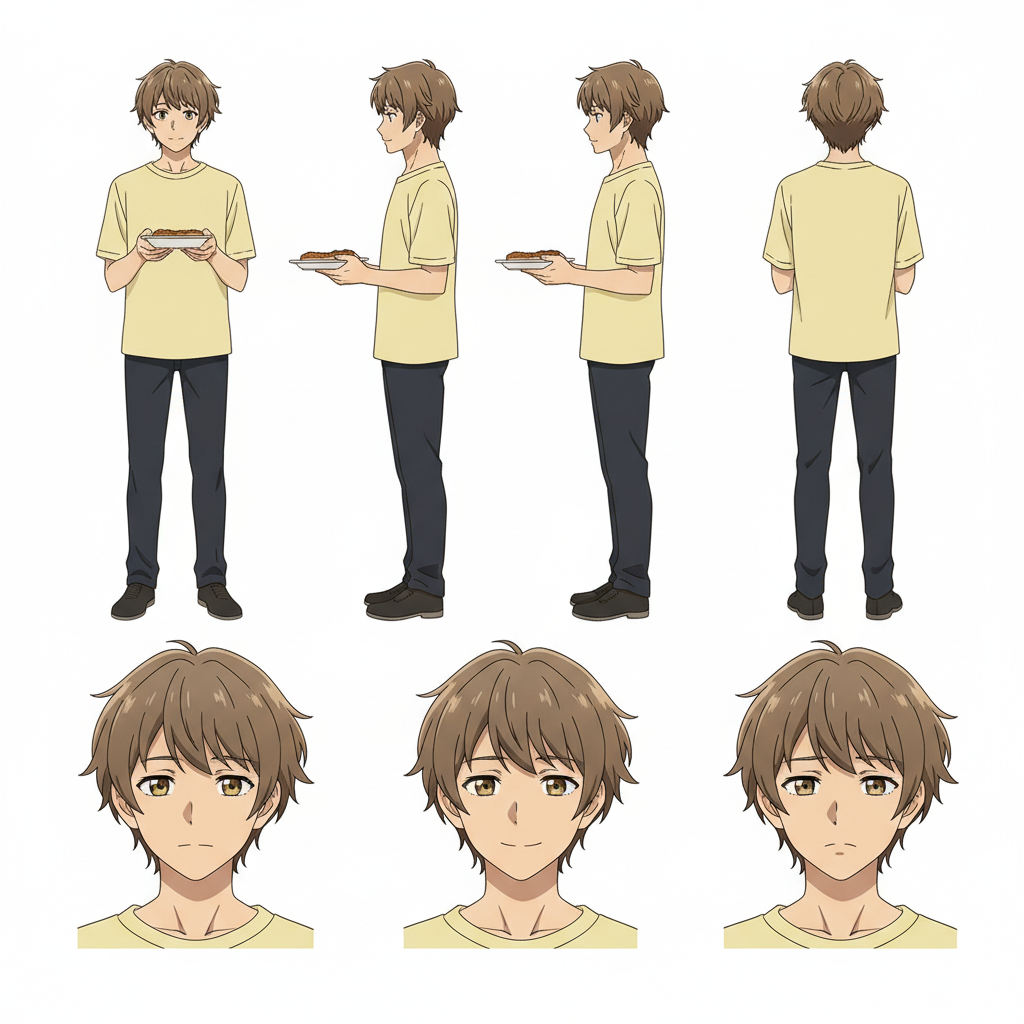
5 Mistakes to Avoid When Making Anime Videos with Seedance 2
Save time and credits by not learning these the hard way
Avoid the most common Seedance 2 mistakes that waste generations. Rushed prompts, bad starting images, overstuffed timelines, and more.
Seedance 2 vs Seedance 1.5: Which Should You Use for Anime?
Two models, different strengths, and one important difference in content filtering
Seedance 2 and Seedance 1.5 both generate anime video, but they handle content filtering differently. Here's when to use each model and what to expect.
Explore AutoWeeb
Jump into the tool that fits your creative step.
AI Anime Video Generator
Animate storyboard shots into cinematic clips with Seedance 2 and consistent characters.
Anime Character Creator
Design original characters with consistent sheets across every scene.
AI Anime Image Generator
Generate cinematic anime stills anchored to your character library.
Turn Photo Into Anime
Upload any photo and watch AI turn it into stunning anime art in seconds.
AI Anime Location Generator
Create a location set once, then generate reference images from every angle.
AI Anime Storyboarding
Describe your idea, pick your characters, and let AI draft the script and scenes.
AI Anime Prompt Agent
Turn a rough idea into a cinematic Seedance 2 prompt with the AI Director.