How to Turn Any Character Into an Anime Character With AI
Upload a screenshot, reference image, or sketch of a character you already built. AutoWeeb turns it into polished anime art that keeps the design details you care about.
You already have the character. Maybe it is a VRChat avatar with split-dye hair and layered streetwear. Maybe it is a D&D tiefling bard with orange hair and curved horns. Maybe it is a hand-drawn OC you sketched in a notebook last year. The question is not whether it would look good as anime art. The question is how to get there without the AI inventing a stranger who only vaguely resembles your design.
That is what a character to anime workflow solves. Instead of prompting from scratch, you upload an existing character image and let AutoWeeb read the design: hair shape, eye color, outfit layers, accessories, markings, species traits, and the overall color palette. The photo-to-anime converter treats your upload as a design reference, not a selfie to beautify. Lock the result in a character sheet and you have a reusable anime version of a character you already built.
👉 Upload Your Character Image on AutoWeebWhat counts as a character image
Most AI anime character generators start from a blank prompt. A character to anime generator starts from something you already made. Any clear reference image works as long as the defining details are visible in the frame.
- VRChat avatars: In-game screenshots with neutral lighting and UI hidden. See the VRChat conversion tutorial for screenshot tips.
- VRoid and 3D avatars: Studio screenshots or renders with hair, outfit, and accessories fully visible.
- VTuber models: Model screenshots or existing reference art that shows your channel identity on-model.
- Game characters: In-game screenshots from RPGs, MMOs, fighters, or gacha titles. Hide the UI and frame the character clearly.
- D&D and tabletop characters: Mini photos, VTT portraits, Hero Forge renders, or reference sketches from your character sheet.
- Original characters (OCs): Digital line art, colored illustrations, or pencil sketches scanned at high resolution.
- Fantasy characters: Elves, tieflings, anthropomorphic designs, and other species with horns, wings, tails, or unusual skin tones.
You do not need a photo of yourself. You need a readable image of the character you want translated. The 12 character types guide covers each category in more detail, but the core idea is the same across all of them: upload what you have, preserve what defines the design.
Why preserving recognizable traits matters
Random generation invents a new face every time. Character conversion keeps the design you already chose. That difference shows up in the details people notice first: hairstyle and color placement, outfit silhouette, facial features, accessories, markings, species traits, and the color palette that ties the whole look together.
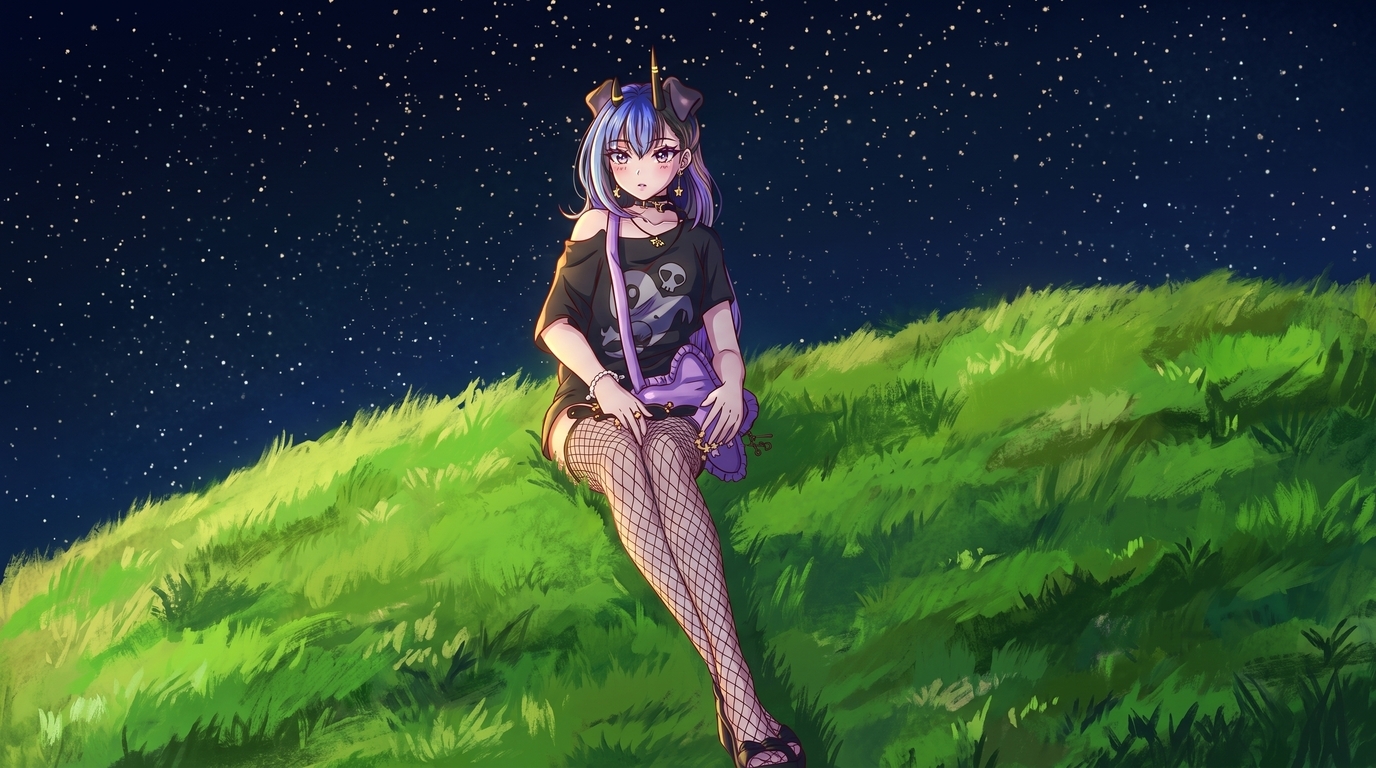
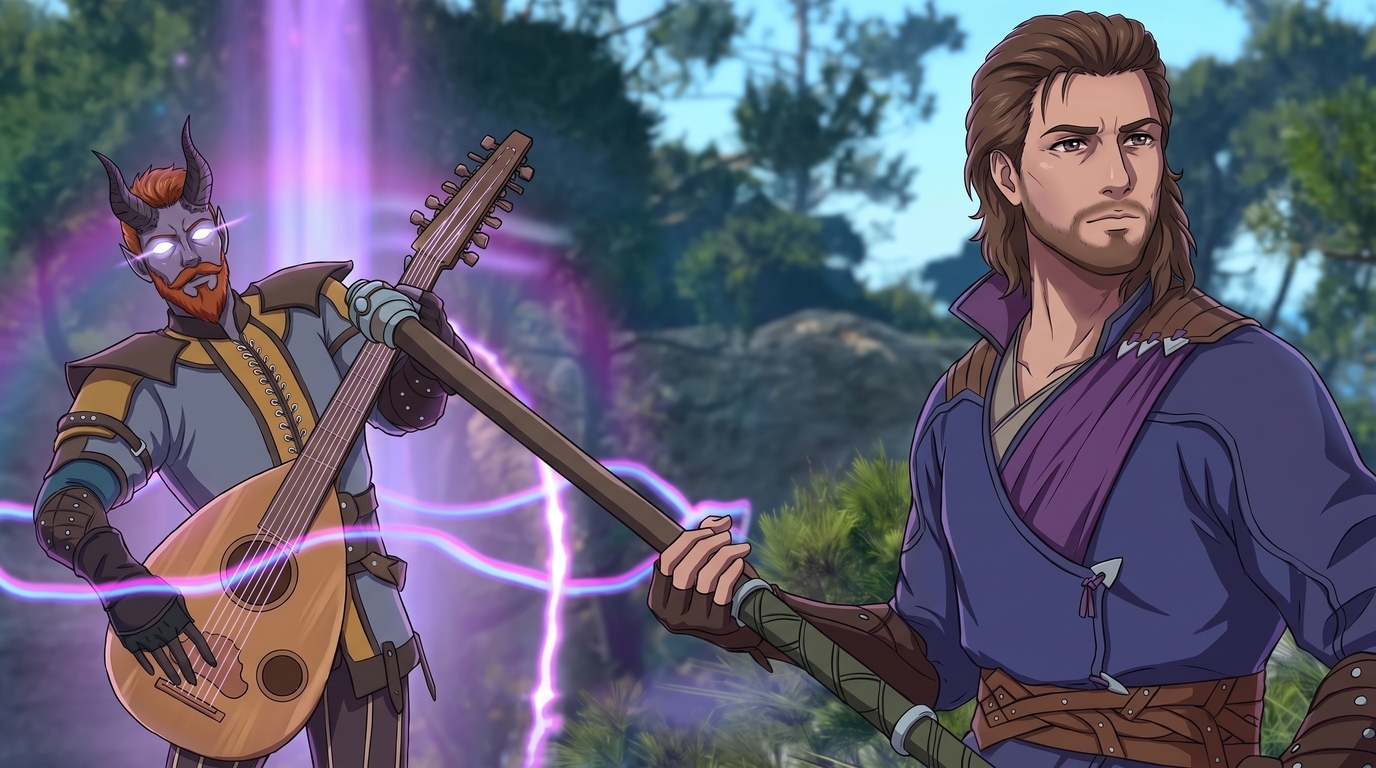
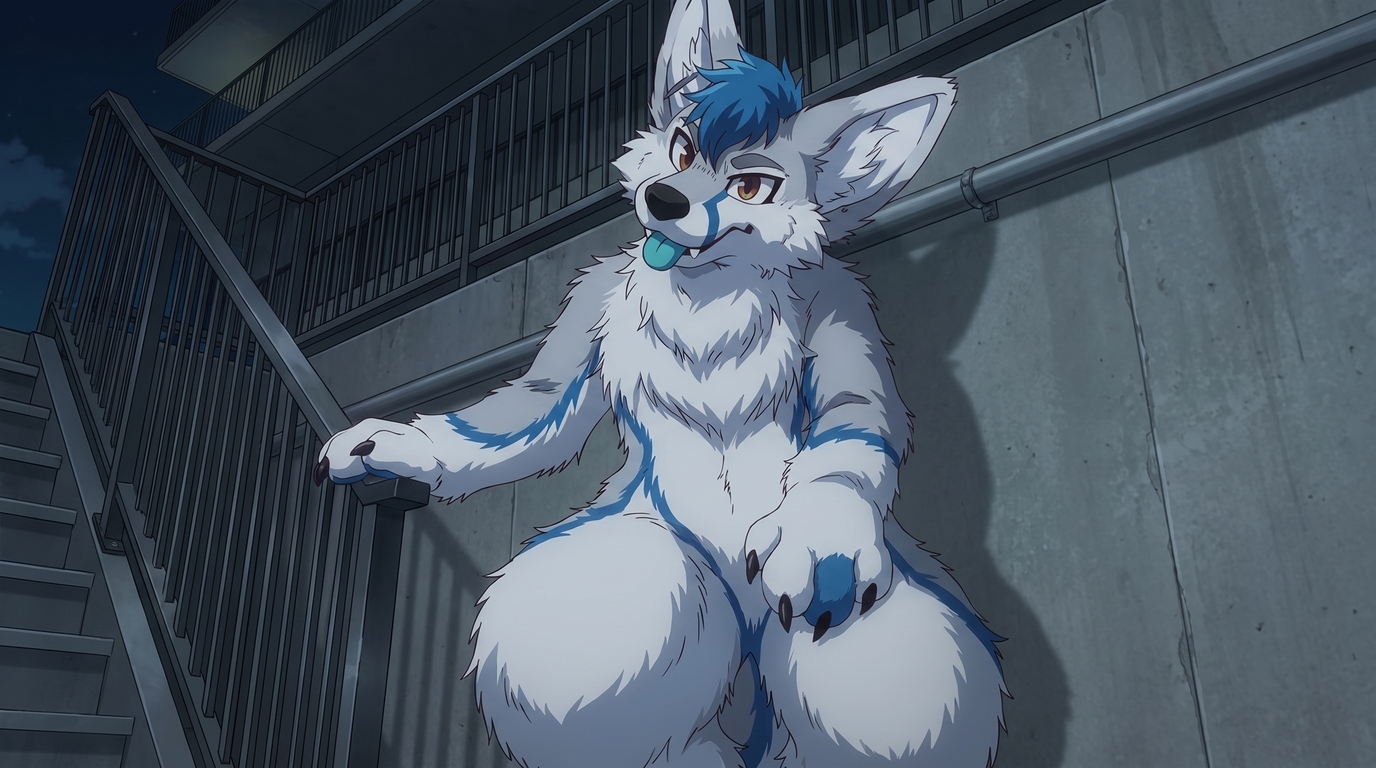
If the converter drops your character's split hair colors, horn shape, or signature bag, the output might still look like nice anime art. It will not look like your character. AutoWeeb reads those elements as design features to preserve, not noise to smooth over. A gothic OC with a horn, crescent choker, and star-shaped bag should still have all three in the anime version. A tiefling bard should keep curved horns, orange hair, and the purple glow of their magic. An anthropomorphic wolf should keep the blue tuft, stripe markings, and fluffy paw proportions.
Locking those traits in a character sheet means every future output stays on-model. Your PFP, full-body portrait, chibi, and wallpaper all read as the same person, not cousins who share a vague color scheme.
Example anime outputs
Each image below is a finished example of what AutoWeeb produces from an existing character reference. They are different characters and different output types, not stages of the same conversion. What they share is preserved identity: species traits, outfit details, accessories, and color palette carried through into polished 2D art.
Step 1: Upload your character image
Open AutoWeeb's photo-to-anime tool and upload your reference. Use the highest resolution image you have. Neutral lighting helps the AI read colors accurately. Frame the character so hair, face, outfit, and major accessories are not clipped or hidden behind props.
For 3D avatars and game screenshots, hide UI elements before capturing. For hand-drawn OCs, scan or photograph the sketch flat with even lighting and no shadows across the page. For tabletop minis, photograph them against a plain background with soft, even light from both sides.
Step 2: Choose an anime style
Open the style selector and try two or three art styles on the same reference before you commit. A gothic streetwear OC might suit dark fantasy rendering. A pastel catgirl avatar might read better in slice-of-life style. A D&D party scene could work in cinematic fantasy illustration.
Prompts that help steer the conversion toward your intent:
- anime portrait, preserve split blue and purple hair, small horn, gothic streetwear, star accessories, clean linework
- fantasy anime illustration, tiefling bard with orange hair and curved horns, purple magic glow, forest background, cinematic lighting
- full body anime art, anthropomorphic wolf, blue fur markings, fluffy paws, nighttime urban scene
Step 3: Generate the conversion
Run the conversion and review the output against your source image. Check the traits that matter most: hair color placement, eye color, outfit layers, accessory shapes, markings, and species features like ears, horns, or tails. If something drifts, adjust your prompt to call out the missing detail explicitly and regenerate.
This is the core of any anime character maker from image workflow: the first conversion establishes the anime look. Everything after that builds on it.
Step 4: Create a reusable character
When you have a conversion you like, take it into AutoWeeb's Character Creator and build a character sheet. Write out the defining features in plain language: exact hair colors and style, eye color, outfit description, accessory list, tattoo or marking locations, species traits, and the color palette. The more specific the description, the more consistent your character art generator outputs stay across sessions.
A locked character sheet is what turns a one-off conversion into a reusable asset. You are not starting from scratch every time you need new art.
Step 5: Generate new scenes and formats
Once the design is locked, branch into whatever formats you need:
- PFPs: Tight portrait crops for Discord, social profiles, or streaming overlays. Hair highlights, chokers, and ear accessories stay sharp at close range.
- Full-body portraits: Standing poses, action stances, or environmental scenes that show the full outfit and silhouette.
- Chibis: Smaller, cuter proportions for stickers, emotes, or casual profile art. Same palette and accessories, different scale.
- Character sheets: Front view, side view, and expression panels that lock the design for artists, riggers, or long-running projects.
- Wallpapers: Wide or tall compositions with scenic backdrops, like the starry hill scene at the top of this post.
- Story scenes: Drop your locked character into photo packs for festivals, city streets, fantasy towns, or slice-of-life interiors. Or prompt a custom scene with party members, magical effects, or dramatic lighting.
The same locked character can fill an entire content library: profile art, thumbnails, seasonal illustrations, campaign handouts, and wallpaper sets, all on-model.
👉 Turn Your Existing Character Into Anime on AutoWeebTips for the strongest results
- Name what must stay. Call out hair color placement, horn shape, tattoo location, and weapon type in your character description.
- Use the highest resolution reference you have. More detail in the source means more detail in the conversion.
- Run the same image through multiple styles. Your character might look better in dark fantasy than shonen, or vice versa.
- Respect creator rights. Your custom design is yours. Paid base models, licensed game characters, and commissioned art may have usage limits. Keep conversions for personal use unless you have permission.
For a broader look at source types and what to preserve for each, read 12 types of characters you can turn into anime with AI. For conversion settings and style selection, start with the photo-to-anime guide.
Related Blog Posts
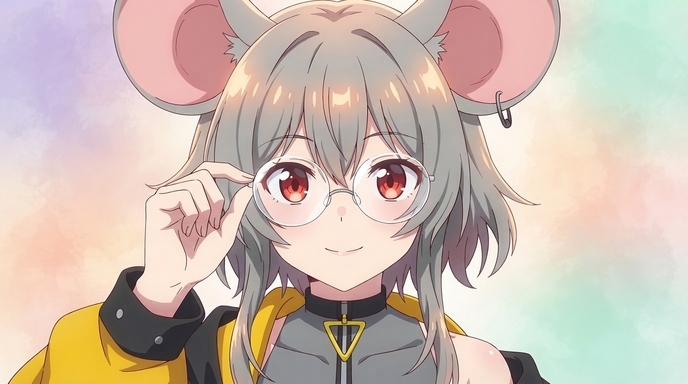
10 Types of Art Every VTuber Can Create From One Character
Profile images, banners, thumbnails, chibis, and more. One locked VTuber reference can fuel an entire channel art library without a new commission every week.
Discover 10 types of VTuber art you can create from one character reference: PFP, banner, thumbnail, chibi, reaction image, illustration, seasonal art, outfit variation, dramatic scene, and wallpaper.
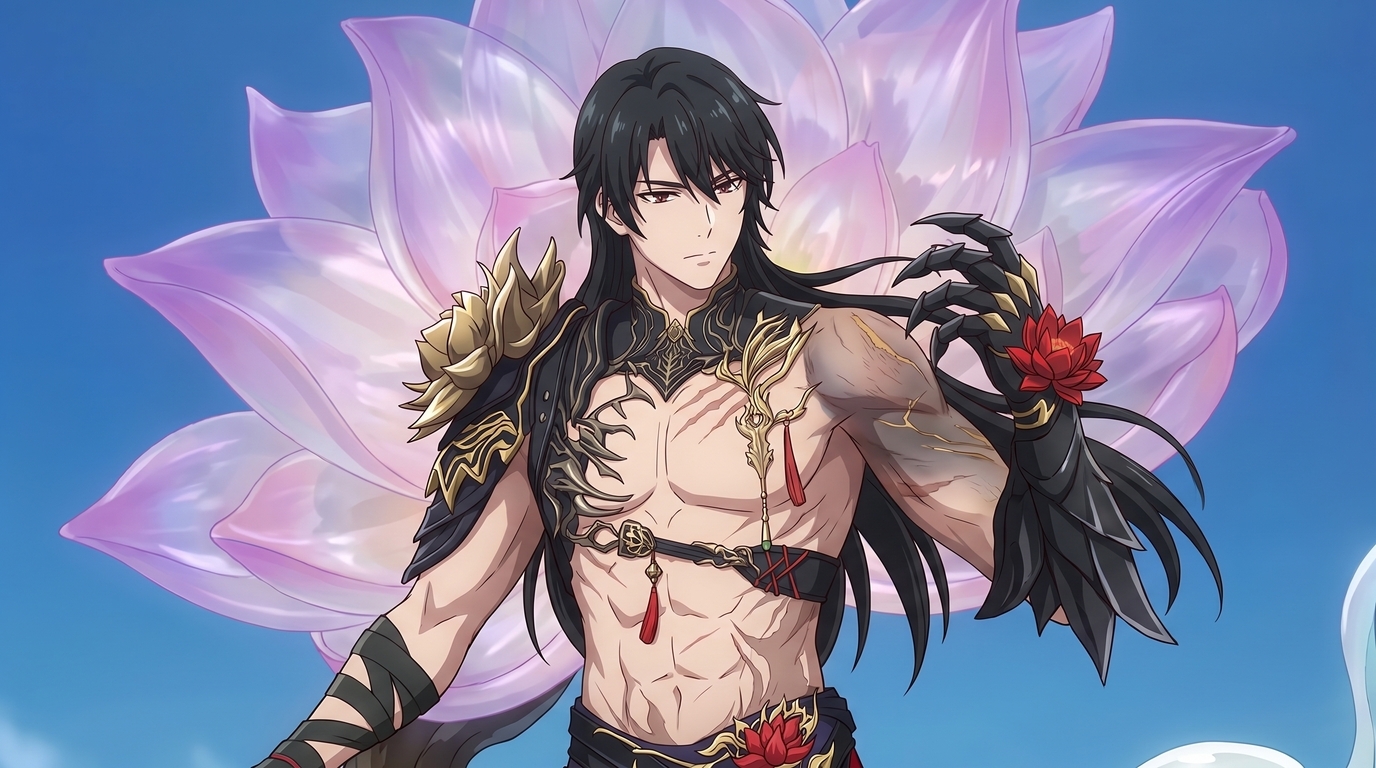
Create Your Own Romance Fantasy Character With AI
Crown princes, villainesses, knights, and academy students. Build a romance fantasy character from a photo or transform your OC into polished manhwa-style art.
Create a romance fantasy character with AI using AutoWeeb. Generate otome isekai protagonists, villainess designs, manhwa-style love interests, and fantasy archetypes from a photo or existing OC.
How to Make Anime Art of Your VTuber Character
You already have the design. Upload a model screenshot or reference image and generate PFPs, thumbnails, social posts, and illustrations without rebuilding your character from scratch.
Learn how to make anime art of your VTuber character. Upload screenshots or reference images to create on-model PFPs, thumbnails, chibis, wallpapers, and seasonal art with AutoWeeb.
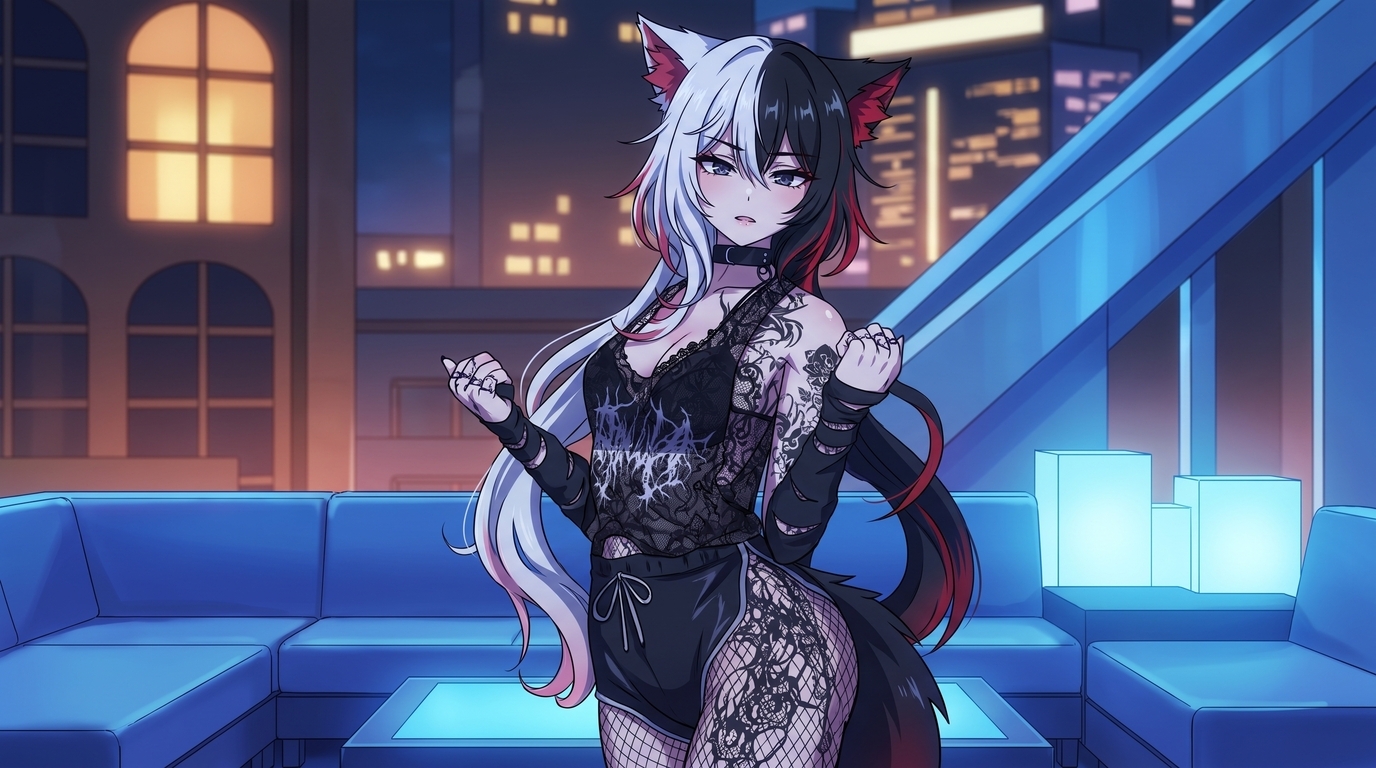
How to Turn Your VRChat Avatar Into an Anime Character
You spent hours on that look. A clean screenshot and AutoWeeb can turn it into polished 2D anime art that keeps every detail you care about.
Learn how to turn your VRChat avatar into anime art. Screenshot tips, example outputs, and a step-by-step workflow for PFPs, illustrations, and character sheets with AutoWeeb.
Explore AutoWeeb
Jump into the tool that fits your creative step.
AI Anime Video Generator
Animate storyboard shots into cinematic clips with Seedance 2 and consistent characters.
Anime Character Creator
Design original characters with consistent sheets across every scene.
AI Anime Image Generator
Generate cinematic anime stills anchored to your character library.
Anime Filters
Upload any photo and apply AI anime filters to turn it into stunning anime art in seconds.
AI Anime Location Generator
Create a location set once, then generate reference images from every angle.
AI Anime Storyboarding
Describe your idea, pick your characters, and let AI draft the script and scenes.
AI Anime Prompt Agent
Turn a rough idea into a cinematic Seedance 2 prompt with the AI Director.