How to Turn Your D&D Character Into Anime Art
Upload a miniature photo, VTT portrait, Hero Forge render, or hand-drawn sketch. AutoWeeb turns your tabletop character into polished anime art that keeps armor, weapons, and species traits recognizable.
Your D&D character already has a face, a build, and a wardrobe you chose on purpose. Maybe you spent an hour in a character creator picking horn shape and hair color. Maybe your mini arrived from a painter with the exact cloak trim you described. Maybe your DM keeps a VTT token that has been on screen for forty sessions. The question is not whether that character would look good as anime art. The question is how to get there without the AI inventing a cousin who vaguely shares your color palette.
That is what a D&D character portrait workflow solves. Instead of prompting a random fantasy hero from scratch, you upload the reference you already have and let AutoWeeb read the design: race traits, armor silhouette, weapon type, scars, tattoos, magical glow, and the equipment your sheet lists line by line. The photo-to-anime converter treats your upload as a character reference, not a generic stock photo. Lock the result in a character sheet and you have a reusable D&D anime character you can drop into party art, battle scenes, and campaign moments without starting over every session.
AutoWeeb is not affiliated with Dungeons & Dragons or Wizards of the Coast. This guide is for players who want fan art and campaign visuals built from their own character designs.
👉 Upload Your D&D Character Reference on AutoWeebWhat you can upload as a starting reference
Most D&D character generator tools output a visual you can screenshot. Most tables accumulate reference images over time. Any clear image works as long as the defining fantasy details are visible in the frame.
- Character creator screenshot: Hero Forge, Titan Forge, Eldritch Foundry, or in-game avatar builders. Frame the full figure with hair, face, and outfit unobstructed.
- Painted miniature photo: Photograph against a plain background with soft, even light. Both sides of the mini help if armor detail wraps around the model.
- Hand-drawn sketch or commission: Pencil, ink, or digital line art scanned at high resolution. Color notes in the margins help steer palette.
- Game avatar or VTT portrait: Tokens from Roll20, Foundry, or Baldur's Gate character screens. Hide UI before capturing.
- Existing portrait art: A prior commission, AI output you liked, or a mood board crop that already nails the face and gear.
You do not need professional art to start. You need a readable image of the character you play. The broader character to anime guide covers the same upload logic for game screenshots and OCs, but tabletop characters often carry more layered equipment than a typical profile photo workflow expects.
Fantasy details that should stay recognizable
Random fantasy generation invents a new adventurer every time. Character conversion keeps the one your table knows. That difference shows up in the details players notice first when a portrait appears on screen.
- Armor and clothing: Pauldrons, leather straps, cloak color, tabard symbols, and the difference between plate, scale, and studded leather.
- Weapons: Greatsword vs. rapier vs. staff vs. crossbow. Shape and size matter more than generic "sword."
- Races and species: Elf ears, tiefling horns, dragonborn snout, firbolg height, tabaxi fur patterns, and unusual skin tones.
- Scars and tattoos: Placement on the cheek, across the knuckles, or along the collarbone. Name the location in your character description.
- Magical effects: Purple warlock glow, holy radiance, necrotic wisps, or enchanted weapon trails. These are identity markers for spellcasters.
- Equipment and accessories: Holy symbols, thieves' tools on a belt, component pouches, tankards, spyglasses, and the specific trinket your backstory mentions.
If the converter drops your tabaxi's stripe pattern or your cleric's sun medallion, the output might still look like nice D&D character art. It will not look like your character. AutoWeeb reads those elements as design features to preserve. Lock them in a character sheet and every future portrait stays on-model for session recaps, player handouts, and the illustrated history your campaign deserves.
Example anime outputs
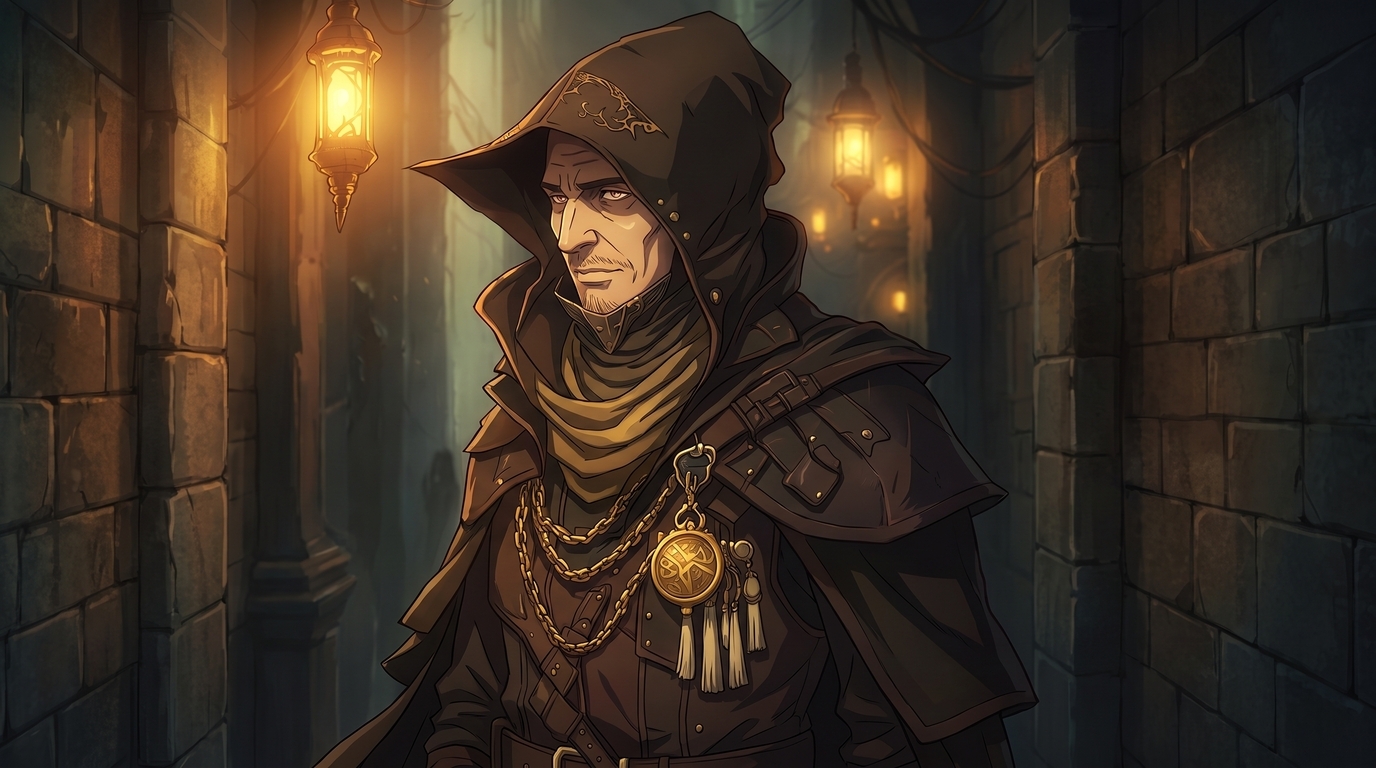
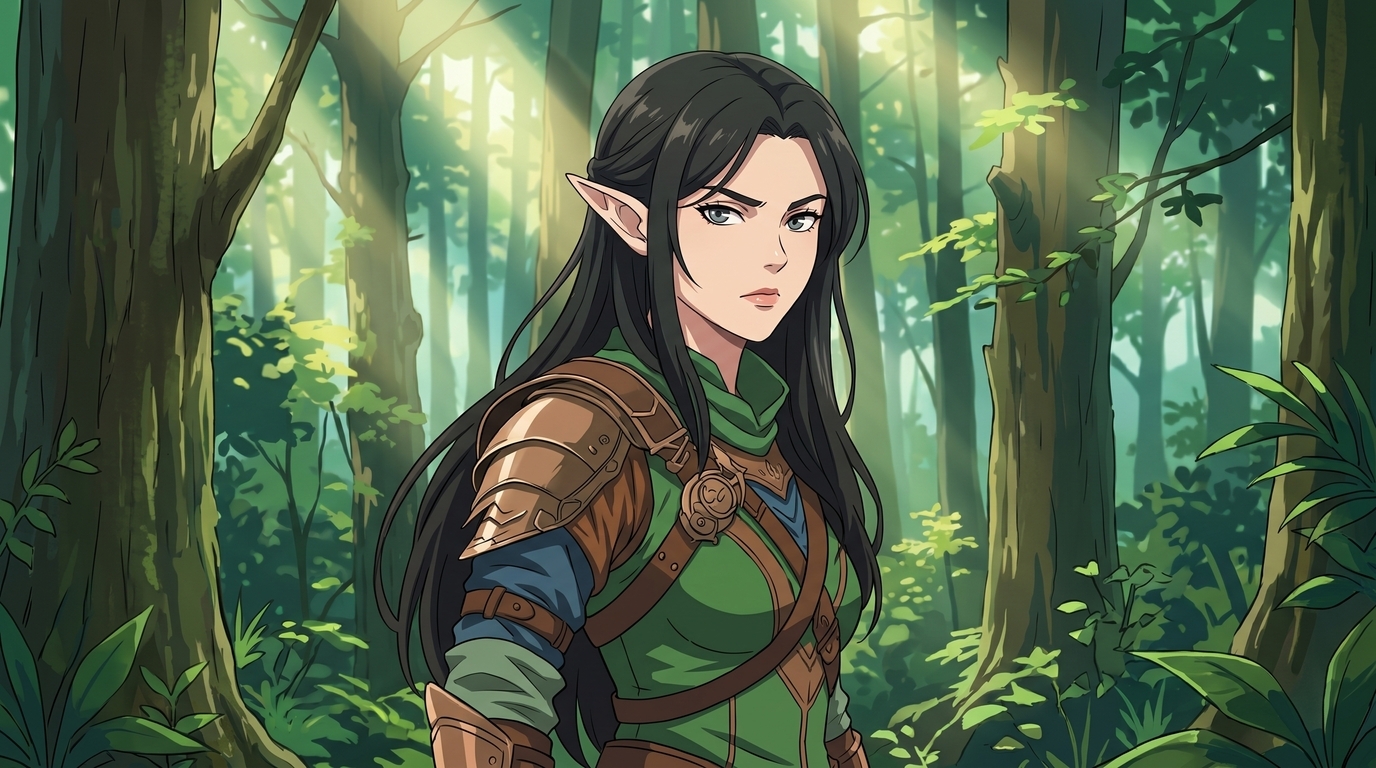
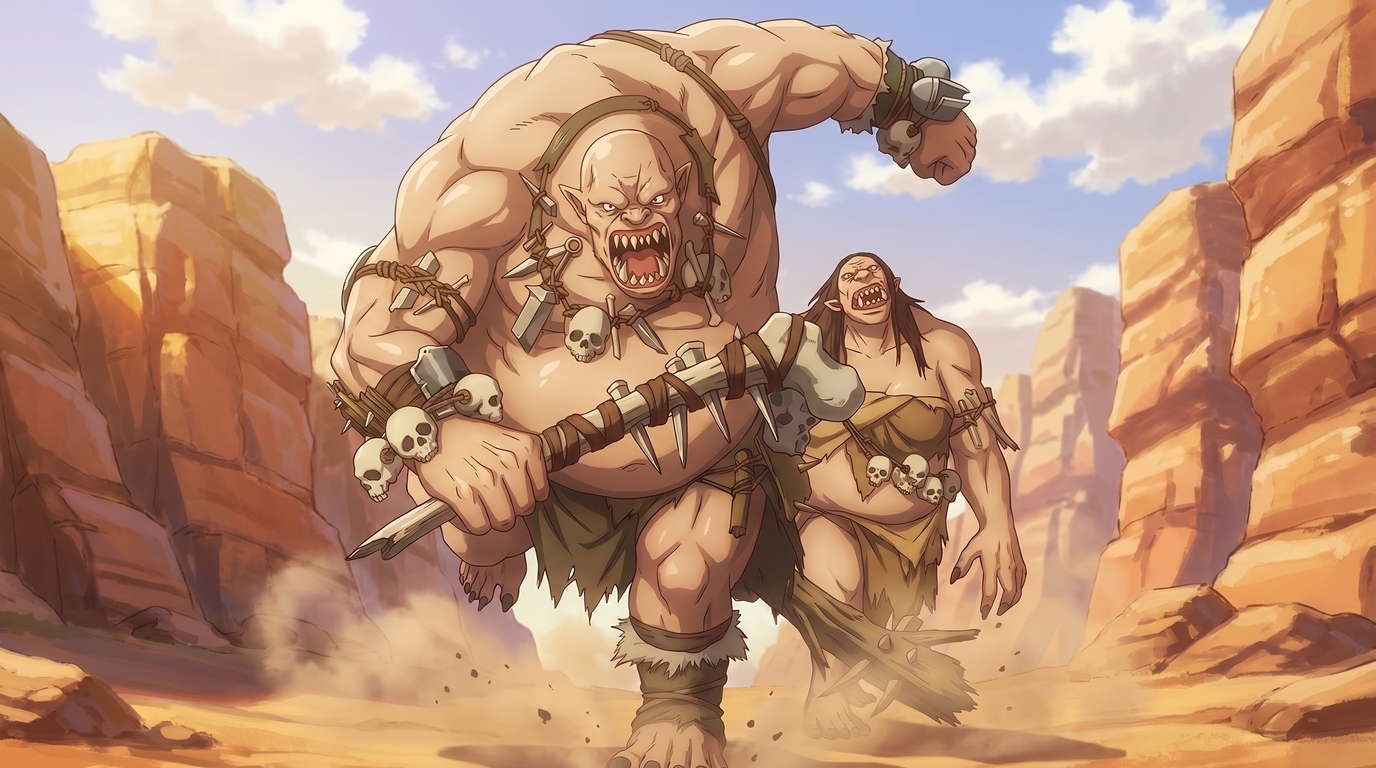
Each image below is a finished example of what AutoWeeb produces from fantasy character references. They are different characters and different scene types, not stages of the same conversion. What they share is preserved identity: armor layers, species traits, weapons, and atmosphere carried through into polished 2D art.
Step 1: Upload your character reference
Open AutoWeeb's photo-to-anime tool and upload your best reference image. Use the highest resolution file you have. Neutral lighting helps the AI read armor metal and fabric colors accurately. Frame the character so face, hair, torso gear, and major weapons are not clipped or hidden behind props.
For mini photos, shoot straight-on and from a slight angle so pauldrons and cloak folds read clearly. For VTT tokens, export or screenshot at full size rather than upscaling a tiny table icon. For sketches, flatten the page and avoid shadows across the drawing.
Step 2: Choose an anime style
Open the style selector and try two or three art styles on the same reference before you commit. A grim rogue in a lantern alley might suit dark fantasy rendering. A sunlit elf ranger might read better in bright adventure illustration. A full party scene could lean cinematic with wide composition and dramatic lighting.
Prompts that help steer the conversion toward your intent:
- anime D&D character portrait, hooded rogue, leather armor, golden chains, glowing arcane medallion, lantern-lit stone alley, cinematic lighting
- fantasy anime illustration, elf ranger, pointed ears, green tunic, bronze pauldron, sunlit forest background, clean linework
- anime battle scene, ogres charging through desert canyon, dynamic action pose, dust clouds, dramatic sunlight
Step 3: Generate and review the conversion
Run the conversion and compare the output to your source image. Check the traits your table would notice: horn shape, ear length, hair color, armor layers, weapon type, holy symbol, and any scars or tattoos you named in session zero. If something drifts, adjust your prompt to call out the missing detail explicitly and regenerate.
This is the core of any workflow to turn D&D character into anime art: the first conversion establishes the anime look. Everything after that builds on it.
Step 4: Lock a reusable character sheet
When you have a conversion you like, take it into AutoWeeb's Character Creator and build a character sheet. Write out defining features in plain language: race, hair style and color, eye color, armor description, weapon list, tattoo locations, magical aura color, and trinkets from your backstory. The more specific the description, the more consistent your outputs stay across sessions.
A locked character sheet turns a one-off portrait into a campaign asset. You are not re-explaining your tiefling's horn curve every time you need new art.
Step 5: Branch into portraits, party art, and campaign scenes
Once the design is locked, generate the formats your table actually uses:
- Character portraits: Tight crops for Discord, Roll20 tokens, or player handouts. Face, hair, and signature gear stay sharp at small scale.
- Party art: Group compositions with your locked characters standing together in a tavern, camp, or throne room. Each member stays on-model.
- Battle scenes: Boss fights, ambushes, and dramatic combat moments with cinematic angles and environmental storytelling.
- Character sheets: Front view, expression panels, and equipment callouts that lock the design for artists or long campaigns.
- Campaign moments: Session highlights rendered as stills: the royal audience, the dungeon reveal, the campfire confession, the finale at the city gates.
Drop locked characters into photo packs for fantasy towns, dungeons, and tavern interiors, or prompt custom scenes that match your actual play history. The same reference can fill an illustrated campaign journal without a new commission after every session.
👉 Turn Your D&D Character Into Anime Art on AutoWeebTips for the strongest results
- Name what must stay. Call out horn shape, pauldron color, scar placement, and weapon type in your character description.
- Use the clearest reference you have. A Hero Forge screenshot often beats a blurry phone photo of a mini on a cluttered table.
- Run the same image through multiple styles. Your warlock might read better in dark fantasy than bright shonen adventure.
- Keep fan art personal. Your custom design is yours. Official D&D artwork, licensed mini sculpts you did not commission, and other players' characters need permission before public use.
For fifteen scene ideas you can build from one locked character, read 15 anime art ideas for your D&D character. For the broader upload workflow across character types, start with how to turn any character into anime with AI.
Related Blog Posts
10 Types of Art Every VTuber Can Create From One Character
Profile images, banners, thumbnails, chibis, and more. One locked VTuber reference can fuel an entire channel art library without a new commission every week.
Discover 10 types of VTuber art you can create from one character reference: PFP, banner, thumbnail, chibi, reaction image, illustration, seasonal art, outfit variation, dramatic scene, and wallpaper.
Create Your Own Romance Fantasy Character With AI
Crown princes, villainesses, knights, and academy students. Build a romance fantasy character from a photo or transform your OC into polished manhwa-style art.
Create a romance fantasy character with AI using AutoWeeb. Generate otome isekai protagonists, villainess designs, manhwa-style love interests, and fantasy archetypes from a photo or existing OC.
How to Make Anime Art of Your VTuber Character
You already have the design. Upload a model screenshot or reference image and generate PFPs, thumbnails, social posts, and illustrations without rebuilding your character from scratch.
Learn how to make anime art of your VTuber character. Upload screenshots or reference images to create on-model PFPs, thumbnails, chibis, wallpapers, and seasonal art with AutoWeeb.
How to Turn Your VRChat Avatar Into an Anime Character
You spent hours on that look. A clean screenshot and AutoWeeb can turn it into polished 2D anime art that keeps every detail you care about.
Learn how to turn your VRChat avatar into anime art. Screenshot tips, example outputs, and a step-by-step workflow for PFPs, illustrations, and character sheets with AutoWeeb.
Explore AutoWeeb
Jump into the tool that fits your creative step.
AI Anime Video Generator
Animate storyboard shots into cinematic clips with Seedance 2 and consistent characters.
Anime Character Creator
Design original characters with consistent sheets across every scene.
AI Anime Image Generator
Generate cinematic anime stills anchored to your character library.
Anime Filters
Upload any photo and apply AI anime filters to turn it into stunning anime art in seconds.
AI Anime Location Generator
Create a location set once, then generate reference images from every angle.
AI Anime Storyboarding
Describe your idea, pick your characters, and let AI draft the script and scenes.
AI Anime Prompt Agent
Turn a rough idea into a cinematic Seedance 2 prompt with the AI Director.