How to Create Anime Videos with Google Omni Flash
Google's new multimodal video model handles scene cuts, reference images, and natural motion differently from anything else on the market
Google Gemini Omni Flash (gemini-omni-flash-preview) is Google's new high-speed video model, built for text-to-video, image-to-video, reference-based generation, and conversational editing through the Gemini API. For anime creators, it opens a different lane than Seedance 2: native multimodality, flexible image tagging, and scene transitions that actually listen when you write "[cut to a new scene]" in your prompt.
Omni Flash is still in preview. The API has real limitations, and anime output behaves differently from what you get on ByteDance's model. But if you understand how it thinks about images, audio, and cuts, you can produce clips that feel closer to directed anime than raw prompt-and-pray generation.
👉 Create Anime Starting Images on AutoWeebWhat is Gemini Omni Flash?
Omni Flash processes text, image, audio, and video in a single model pass. Unlike earlier video generators that bolt audio on after the fact, it generates video with synchronized sound design by default. It also supports stateful editing: you generate a clip, then send follow-up prompts with previous_interaction_id to adjust lighting, swap backgrounds, or add elements without rebuilding the whole scene from scratch.
For anime work, the relevant modes are text-to-video, image-to-video, and reference-to-video. You can set aspect ratio to 16:9 or 9:16, describe timing with natural language or timecode blocks like [0-3s] A person is walking, and use Google's tag system to tell the model exactly what each uploaded image is for.
One important limitation right now: audio references are not supported. Seedance 2 accepts audio files as input for lip-sync and rhythm. Omni Flash does not. You control audio entirely through text in your prompt.
How to Build a Starting Image for Omni Flash Anime Videos
This is the single highest-leverage step for anime on Omni Flash. The model uses your first frame as the visual contract for the entire clip. Hair color, outfit details, linework weight, background depth: if it is not in the starting image, Omni Flash has to invent it, and invented details drift.
Omni Flash can look over-animated compared to the calmer 24fps cadence Seedance 2 tends toward. A more anime-looking starting image helps. Generate your still in a named style, lock the character with a character sheet, and make sure the pose leaves room for the motion you plan to describe. A character frozen mid-sprint from a static portrait will fight you less than a stiff T-pose that the model has to reinterpret on the fly.
Omni Flash Image Tagging: <FIRST_FRAME> and <IMAGE_REF_N>
Seedance 2 uses @Image1, @Image2, and similar @-mentions to bind reference files. Omni Flash uses a different syntax with more flexible role mapping.
Simple tags
The recommended approach for most anime clips:
<FIRST_FRAME>: the uploaded image becomes the opening frame<IMAGE_REF_0>,<IMAGE_REF_1>, and so on: images used as style or subject references, starting from index 0
Example for a two-character scene with a style reference:
<FIRST_FRAME> medium shot, a stoic detective with steel gray eyes stands in a rain-slicked alley. <IMAGE_REF_0> provides the noir lighting style. Camera slowly pushes in. No dialogue.
Explicit declarations for complex setups
When you upload multiple images with mixed roles, prefix tags pair with natural-language instructions at the end of the prompt:
[# Sources <FIRST_FRAME>@Image1] [# References <IMAGE_REF_0>@Image2] a woman <IMAGE_REF_0> is walking through a lantern-lit festival street. Use Image1 as the starting frame. Use Image2 as a reference for the video generation.
The flexible mapping matters for anime production. You can separate a character reference sheet from a location still from a style anchor, then bind each to a distinct role without forcing every image into the first frame.
How to Prompt Scene Cuts with Gemini Omni Flash
Omni Flash's standout behavior for anime storytelling is how it handles transitions. Prompts with explicit cut language, especially [cut to a new scene], produce distinct scene changes more reliably than equivalent Seedance 2 prompts in our testing.
You can also time events with natural language or timecode blocks:
- After 3 seconds, she turns toward the window.
- [0-4s] Wide shot of the rooftop at dusk. [cut to a new scene] [4-8s] Close-up of her face, eyes narrowing.
- In a single continuous shot, no scene cuts. (use this when you do not want the model to invent its own montage)
By default, Omni Flash tries to craft a short narrative with multiple shots. If you want one unbroken scene, say so explicitly: in a single unbroken scene, no scene cuts, continuous handheld shot.
How to Control Dialogue and Audio in Omni Flash Prompts
Omni Flash generates audio with every video by default. Two behaviors matter for anime creators.
First, the model is more likely to add character dialogue than Seedance 2, even when you did not ask for it. If your character should stay silent, write no dialogue in the prompt. If they should speak, be explicit about what they say: she whispers "wait for me on the roof" lands more reliably than a vague emotional dialogue scene.
Second, Seedance 2 is more likely to add background music on its own. Omni Flash still generates ambient audio, but you steer it through text: gentle breeze and distant train sounds, no music or upbeat J-pop instrumental in the background. Since audio file references are unsupported, every audio decision lives in the prompt.
Omni Flash vs Seedance 2 for Sports and Slice-of-Life Anime
Omni Flash and Seedance 2 do not produce identical anime motion. Seedance 2 tends toward a calmer 24fps anime cadence: held frames, deliberate pacing, fewer in-between poses. Omni Flash can feel over-animated on quiet scenes, with more micro-movement in hair, fabric, and facial expression. That extra motion is not always wrong, but it is wrong for a still moment on a train platform at golden hour.
Where Omni Flash pulls ahead is natural movement in sports and action. Basketball drives, sprint mechanics, and weight transfer through a punch land with more physical plausibility. If you are building a sports anime or a fight sequence that needs bodies to move like bodies, Omni Flash is worth testing.
Omni Flash Content Filters for Anime Creators
Both Omni Flash and Seedance 2 run aggressive content safety filters. Prompts and inputs that reference copyrighted characters, recognizable franchise motifs, or policy-violating content get blocked.
In practice, Omni Flash appears somewhat more permissive about copyrighted characters than Seedance 2, though neither model is a free pass for fan content. Original characters built with AutoWeeb's Character Creator avoid the filter problem entirely. If you need a model comparison with side-by-side video examples, read our Seedance 2 vs Omni Flash guide.
Example Gemini Omni Flash Anime Video Prompt
Here is a prompt that combines the principles above for a 9:16 slice-of-life clip:
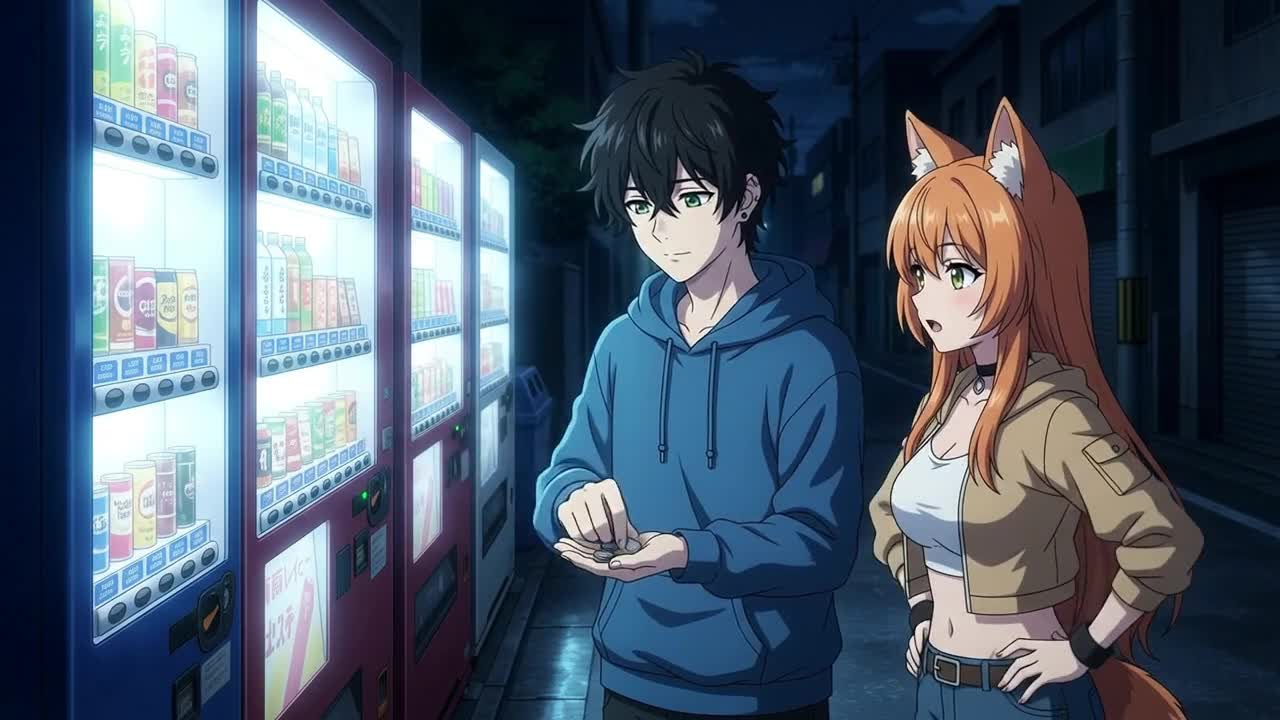
<FIRST_FRAME> [0-3s] Medium shot, a lavender-haired student in a navy school blazer stands at a vending machine, warm afternoon light through the window. She selects a canned coffee. [cut to a new scene] [3-6s] Close-up of her face as she takes a sip, eyes softening. Sound design: vending machine hum, distant school bell, no music. She says quietly: "today was long." No extra sound effects.
Set aspect_ratio: "9:16" in response_format for vertical output. Use task: "image_to_video" in video_config when you upload a starting frame and want the model to treat it as the first frame rather than inferring intent from the prompt alone.
Creating Videos with Omni Flash
Omni Flash is not a Seedance 2 replacement. It is a different tool with different strengths: flexible image tagging, reliable scene cuts, strong sports motion, and conversational editing through the Interactions API. The tradeoffs are real: no audio references, a motion style that can feel busy on quiet anime scenes, and preview-stage API limits.
The workflow that works: build a polished anime still in AutoWeeb, tag your images with <FIRST_FRAME> and <IMAGE_REF_N>, write explicit cut and audio language, and iterate with follow-up edits rather than regenerating from scratch every time.
For a head-to-head breakdown with side-by-side video comparisons, see Seedance 2 vs Omni Flash: which to use for anime. For Seedance 2 prompting fundamentals that still apply to your still-image workflow, read how to write prompts for Seedance 2 anime videos.
Related Blog Posts
How to Create Anime Videos Like "Attack On Wemby"
A complete workflow for creating original anime videos starring a real-world athlete or original character: build the character, write and storyboard the story with AutoWeeb's AI Agent, create locations, design a full cast, @tag every asset in each shot, and generate images and video.
Learn how to create anime videos like Attack On Wemby. Design characters, storyboard scenes with AI, @tag assets, and generate anime images and video in AutoWeeb.
How to Create a Shoujo Anime: The Complete Beginner's Guide to Making Romantic Anime
A complete guide to building an original shoujo anime from concept to animated scenes, covering character design, emotional arcs, romantic locations, storyboards, AI image generation, and video generation in AutoWeeb.
Learn how to create a shoujo anime from scratch. Design expressive characters, write romantic leads, build emotional arcs, storyboard episodes, and animate scenes with AutoWeeb's AI tools.
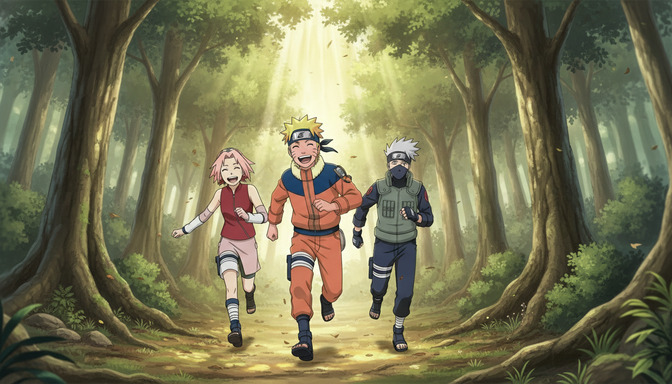
How to Create a Shounen Anime in 2026: A Step-by-Step Guide for Beginners
A complete guide to building an original shounen anime from concept to animated scenes, covering character sheets, power systems, rival dynamics, storyboarding, AI image generation, and the image-to-video workflow in AutoWeeb.
Learn how to create a shounen anime from scratch in 2026. Design characters, build your power system, storyboard episodes, and generate anime images and video with AutoWeeb's AI tools.
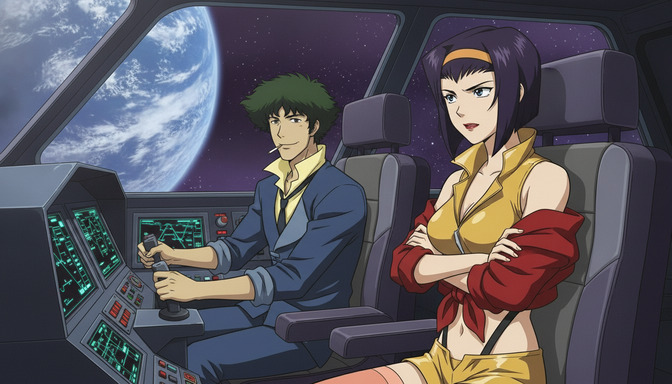
How to Create Fan-Made Anime with AI (Without an Animation Studio)
A complete guide to planning, designing, storyboarding, and animating your own fan anime using AI tools, while respecting the rights of the creators you love.
Learn how to create fan-made anime with AI tools. Design characters, build locations, storyboard scenes, and animate your fan anime without a studio or drawing skills.
Explore AutoWeeb
Jump into the tool that fits your creative step.
AI Anime Video Generator
Animate storyboard shots into cinematic clips with Seedance 2 and consistent characters.
Anime Character Creator
Design original characters with consistent sheets across every scene.
AI Anime Image Generator
Generate cinematic anime stills anchored to your character library.
Anime Filters
Upload any photo and apply AI anime filters to turn it into stunning anime art in seconds.
AI Anime Location Generator
Create a location set once, then generate reference images from every angle.
AI Anime Storyboarding
Describe your idea, pick your characters, and let AI draft the script and scenes.
AI Anime Prompt Agent
Turn a rough idea into a cinematic Seedance 2 prompt with the AI Director.